YouTube channel research
How to find similar YouTube channels and build a review shortlist
To find similar YouTube channels, define what similarity means for your task, then use YouTube topic search and the channel result-type filter to collect candidates. Your own Audience report can add viewer-based leads, while a known public creator can serve as a comparison seed, but every candidate still needs manual verification.
On this page8 sections
- Define what similar means before you search
- Start with native YouTube discovery
- Hypothetical brief: home-coffee tutorial creators
- Use a known public creator as a repeatable seed
- Read public signals as evidence, not verdicts
- Turn discovery into a review shortlist
- When the list looks wrong or too small
- Sources and product details
Define what similar means before you search
A useful shortlist starts with a brief. Write down the subject, presentation style, and intended use. A creator can cover the same broad topic and still be a poor match because the format or research purpose differs.
For example, "coffee channels" is too broad for sponsor research. "English home-coffee brewing tutorials for people using consumer equipment" is workable. A cafe-travel channel, a commercial espresso-machine service channel, or a lifestyle channel with one brewing video may all mention coffee without fitting the same brief.
Seed choice follows the same rule. If you start from a known creator, use one whose broader output fits. Before keeping a candidate, inspect several recent uploads rather than judging from one video or search result.
Start with native YouTube discovery
For a small list, YouTube itself may be enough. Search for a specific topic and format, select Filter, and use the channel result type to narrow results. YouTube documents this in Filter YouTube search results.
Vary queries around the brief instead of repeating one generic phrase. For the hypothetical home-coffee brief, searches might focus on brewing methods, home espresso tutorials, grinder setup, or coffee technique. Open promising channels and check whether recent uploads still match.
Treat search results as leads, not an objective market map. YouTube says search considers relevance, engagement, and quality, and may use search and watch history when enabled, so results can differ between viewers. See How YouTube Search works.
If you run your own channel and the report is available, YouTube Studio offers a more direct viewer-based route. Go to Analytics, then Audience. Channels that your audience watches shows other channels your viewers consistently watched outside your channel over the past 28 days. It is useful for understanding your own viewers, not the private audience of an arbitrary competitor, and the data can be limited. See Understand your YouTube audience.
Choose a discovery route, then verify manually
Define the research question
Write the topic, format, and purpose you will use to keep or reject channels.
Own audience evidence available
Use YouTube Studio Audience when you need channels your own viewers also watch and the report is available.
Topic-first discovery
Search specific topic and format phrases on YouTube, use the channel result-type filter, and open promising channels.
Known useful public creator
Use the creator as a manual reference or optionally as a Channel Finder seed for repeated public-channel comparison.
Verify current channel fit
Inspect several recent uploads, current activity, and any public signals relevant to the brief.
Keep a small review shortlist
Record why each candidate stays, the date checked, and any specific contact reason.
Hypothetical brief: home-coffee tutorial creators
Assume a small kitchen-equipment brand wants creators for manual review. Its brief is: English-language channels whose overall output is mainly home-coffee brewing instruction, with recent videos that still teach consumer brewing rather than cafe travel or commercial-machine repair.
The first pass is whole-channel fit. A channel with recent brewing guides, grinder comparisons, and technique demonstrations can stay. A channel whose recent uploads have shifted mostly to cafe tours should be deprioritized even if older videos match. A commercial repair channel may have strong expertise but still fail the intended format.
The second pass is recency and practical scale. Recent activity and view observations can help compare candidates, but they do not replace opening videos. Keep or reject each creator for a stated reason tied to the brief. No single metric should rescue an off-topic channel.
Use a known public creator as a repeatable seed
If you already know one suitable creator and want to repeat public-channel research, a seed-based comparison can reduce manual browsing. I make Channel Finder, a desktop Chrome extension for this workflow. It uses public channel information and does not claim exact audience overlap. It is not a keyword search, so use YouTube for topic-first discovery.
Install it from the Chrome Web Store. The website explains the product; the search itself runs in the Chrome side panel. Open a relevant public creator's channel or one of their videos, then click the Channel Finder toolbar icon to open the panel. A video uses its author as the seed. You can also choose Use another channel and paste a channel URL or @handle. Nothing starts until you press Find similar channels.
Results appear as they are found. Find more continues the search, while Stop keeps what is already there. Results are candidates, not exhaustive or exact matches. If the niche looks wrong, change the seed instead of trying to repair it with strict filters.
Filters cover subscriber or recent-view ranges, activity, stated country, inferred title language or channel type, and public-email availability. Every active filter must pass. Missing required values are hidden, so strict country or email filters can remove useful candidates. Relax one filter at a time and check the number currently shown.
The product is currently free during early access with usage limits: up to 40 new searches per installation per UTC day, with shared service limits also possible. Find more does not count as a new daily search, but service limits still apply. Searches require internet and use public information. The current privacy page says Saved stays in this browser and exported CSV stays on the device, while it separately documents usage events. No Channel Finder, Google, or YouTube sign-in or card is required.
Read public signals as evidence, not verdicts
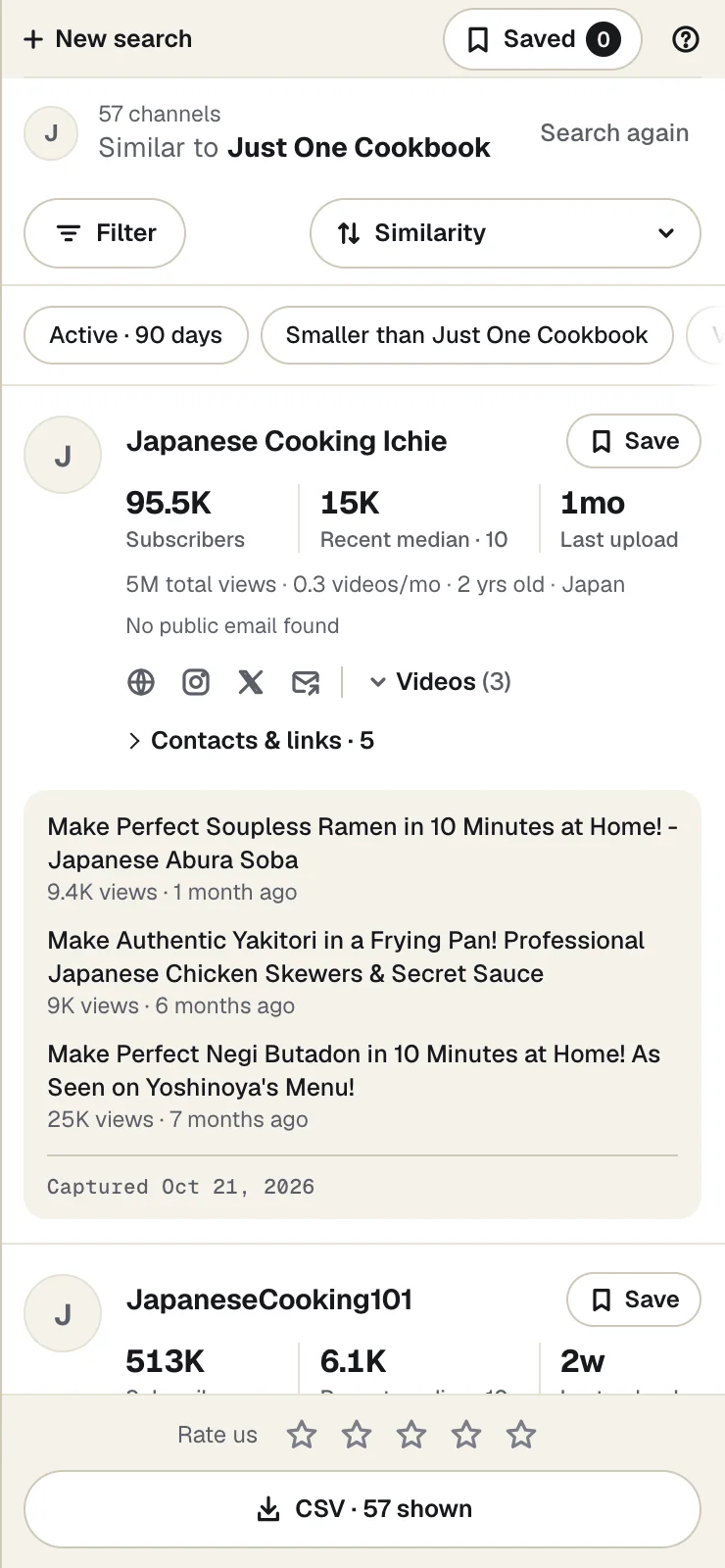
A result row is a research summary. It can show subscribers, recent median views with a sample size, last upload, available public total views, estimated posting rate, channel age, and the creator's stated country. Recent titles can help inspect fit.
The recent median uses up to 10 available uploads from the Videos tab. Known Shorts and streams are excluded, but other Videos-tab entries are not independently verified as long-form. It is a comparison signal, not an estimate of sponsorship reach. Because the metric excludes known Shorts and streams, do not use it alone to infer all publishing activity. Public numbers can be rounded, missing, or old, so use a capture date where available and reopen the current channel before a final decision.
| Observation | What it can support | What it cannot establish |
|---|---|---|
| Recent titles and uploads | Whether the current subject and format fit your brief | That the creator reaches the same audience as your seed |
| Recent median views and sample size | A rough comparison of recent public video performance | Expected campaign reach, conversions, or future views |
| Creator-stated country | The location the creator has chosen to state publicly | Audience location or private demographics |
| Public email or links | A contact path the creator published | Verified delivery, sponsorship interest, or willingness to reply |
Detected title language is an estimate, not proof of viewer language. These public signals do not prove audience authenticity or campaign outcome.
Turn discovery into a review shortlist
A long discovery list is not the deliverable. Keep a smaller set that you can explain and recheck.
For manual YouTube research, a spreadsheet is enough. Record the channel, topic and format fit, the date you checked recent content, and any specific contact reason. In Channel Finder, save candidates into the local Saved list and export either current Results or Saved to CSV. A Results export reflects the channels currently shown, so check active filters and the number currently shown first. A Saved export may include the starting channel when available.
Add your own notes column in the spreadsheet after export if useful; that is not a built-in Channel Finder notes feature.
Before outreach, reopen the current channel and inspect recent work. Confirm that the reason you kept the creator still holds. A published email is only a public contact path, not permission for bulk outreach, and the extension does not send messages.
When the list looks wrong or too small
If no seed is detected from the current page, use Use another channel and paste the public channel URL or @handle.
If results drift into the wrong niche, replace the seed with a creator whose overall channel better matches the brief. Tight filters cannot repair a poor seed.
If too few channels remain visible, relax one filter at a time. Country and public-email filters are easy to overconstrain because missing values fail an active filter. Treat Unknown as missing information, not zero.
If a metric is stale or unavailable, open the current YouTube channel before deciding. Do not convert missing data into zero.
If a daily allowance or shared service limit is reached, continue when allowance or service availability returns. The fallback remains native YouTube search, channel filtering, recent-upload inspection, and your own review notes.
If public-seed comparison is repetitive, Channel Finder for Chrome can collect, filter, save, and export candidates for manual review. For a small list, native YouTube is enough.