
Confluence Cloud · Link review
How to Find Broken Links in Confluence Cloud
Open the links on the pages that matter as the people who read them, record what happens, fix the link on the source page and open it again from the published page. Keep real 404s apart from access problems and timeouts: a link you cannot open is not always a broken link.
 Updated
 12 min read
 Tested in Confluence Cloud on
This guide shows how to find broken links in Confluence Cloud by hand and how to keep a record that another manager can check. Everything is done in the Confluence interface and a browser, without scripts. The example uses the IT support runbook page in a Support Handbook space.
Short answer
- Choose the pages readers rely on, and write the list down.
- Open every relevant link from the published page, with the access your readers have.
- Record the source page, link, result, owner and next action.
- Treat results differently: 404/410, sign-in or access denied, timeout.
- Fix the link in the editor: Edit link, Save, then Update.
- Open the link again from the published page before you close the row.
On this page8 sections
The example: two suspect links
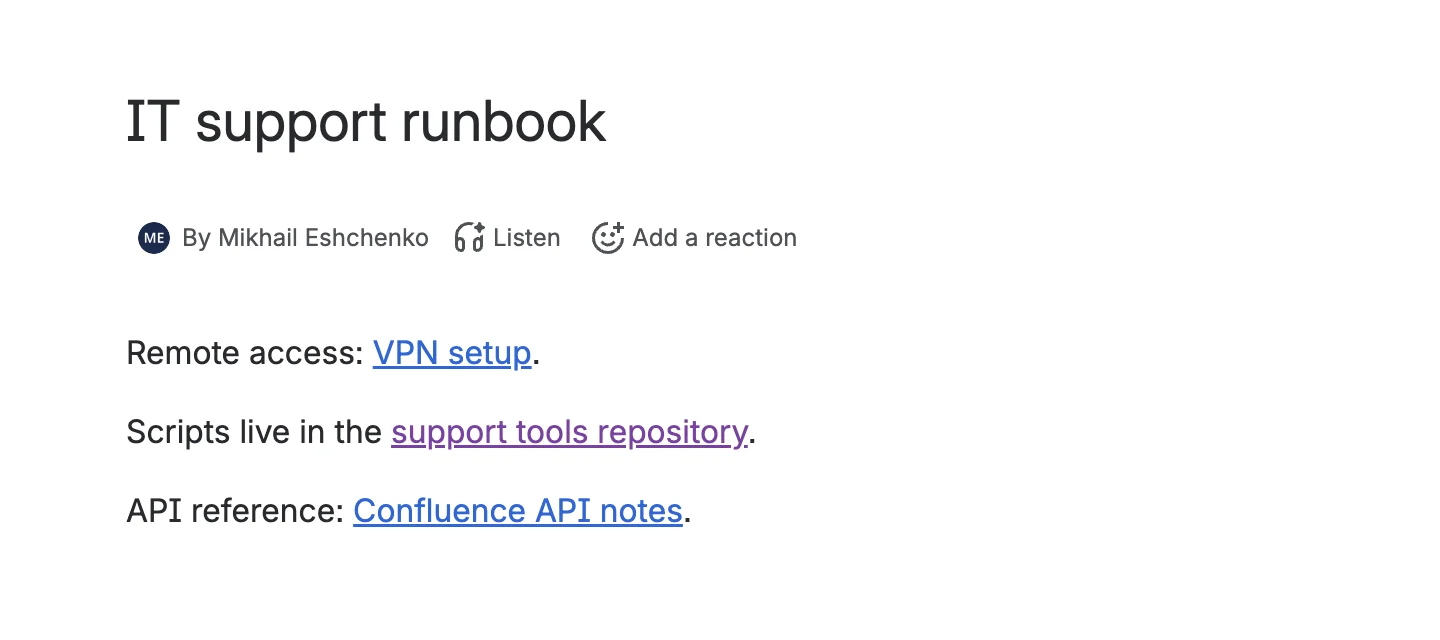
The IT support runbook in the Support Handbook space has two links picked for this review.
 Enlarge screenshot
- VPN setup → https://example.com/old-vpn-setup
- Confluence API notes → a removed page on developer.atlassian.com
On 2 October 2026 both destinations returned HTTP 404. Proving that is only the first half of the job. The review is finished when the right replacement is found, the source page is updated and the reader’s path works again.
A page that opens is not automatically the right page either. A link that lands on a generic homepage or on outdated instructions fails the reader as surely as a 404.
1. Choose the pages that matter
“Check the whole knowledge base” is rarely a real task. Start with a set of pages people actually use:
- onboarding pages new colleagues follow;
- support articles agents send to customers;
- runbooks used during incidents;
- a space affected by a domain or documentation move.
Write the page list down before you start. “No broken links found” only means something when the reader knows which pages were checked.
On each page, include the links people click: text links, buttons, Smart Links, attachment links and links to a heading. To check page for broken links properly, look past the obvious blue text and confirm that each destination is still the intended one.
Check the Undefined list separately
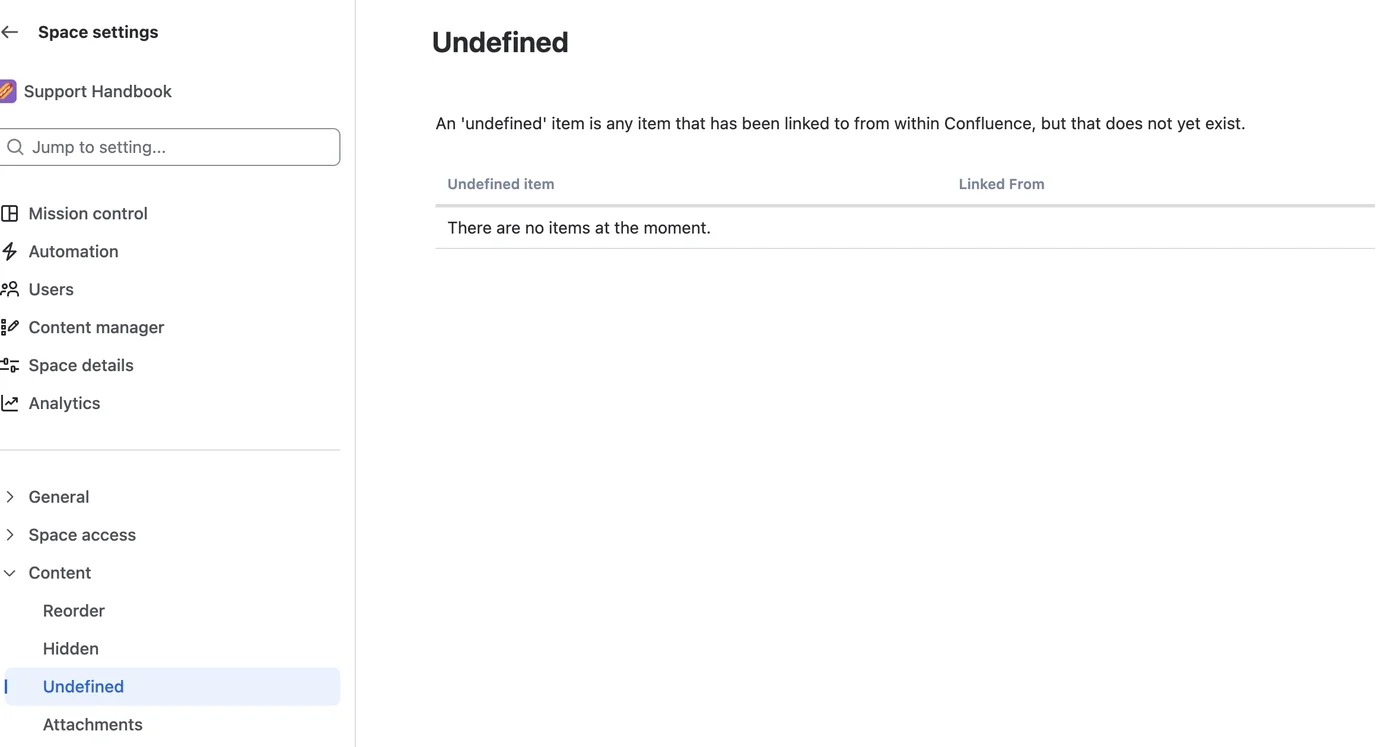
Confluence has one native list related to links: Space settingsContentUndefined. It sits in the space settings, so you need access to them.
 Enlarge screenshot
- Undefined under Content in space settings.
- The definition: an item linked from within Confluence that does not yet exist.
- “There are no items at the moment.” — although the space has two links that return 404.
The list covers links to Confluence pages that do not exist yet. It does not test external addresses, so an empty list does not mean the space has no broken links.
Check: you have a written page list, and you have looked at Undefined if unfinished placeholder pages are in scope.
2. Open each link as the reader
Open the published page and follow each link with the access your readers normally have. An administrator can often open a page that an agent cannot, so a link that works for you may still fail for them.
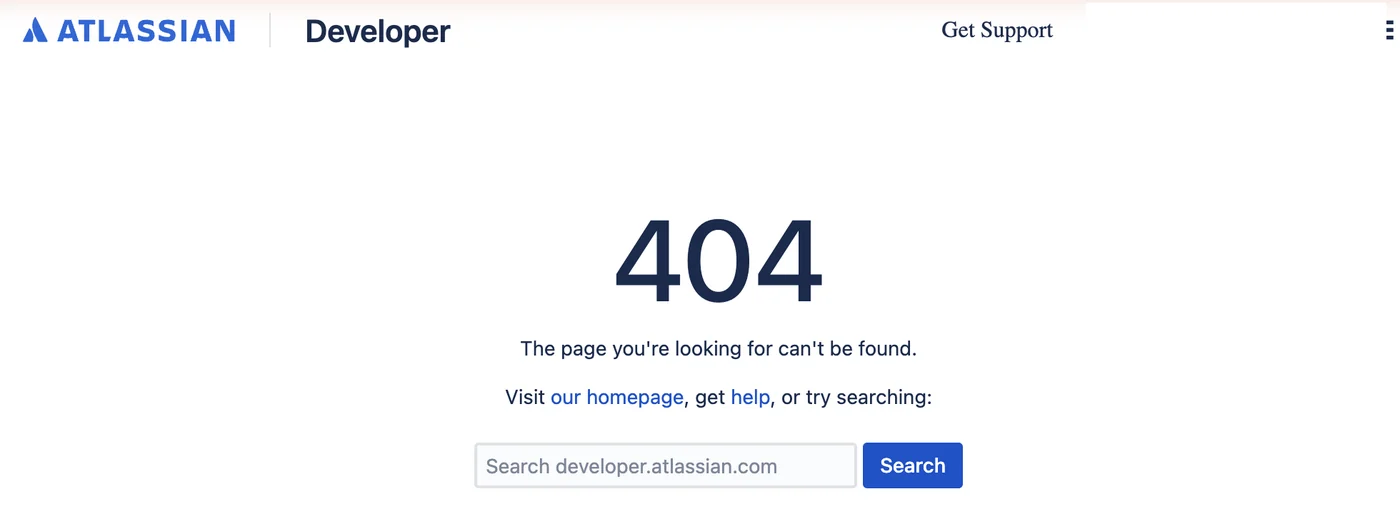
For the IT support runbook, VPN setup leads to a 404 on example.com, and Confluence API notes leads to this:
 Enlarge screenshot
- A confirmed missing destination: 404, the page can’t be found. This is different from a sign-in page or a timeout.
If a link points to a heading, confirm that it lands on that section. If it points to an attachment, confirm that the reader can open the file.
Classify the result before you fix anything
| What you see | What it means | Next action |
|---|---|---|
| 404 or 410 | The page is missing or reported gone | Find the current destination and confirm it with the content owner |
| Sign-in page or access denied | This check had no access | Test with the reader’s access; investigate permissions |
| Timeout, rate limit or 5xx | Availability was not confirmed | Record it and retry later |
| Page loads, wrong content | Works technically, fails the reader | Find the correct content and replace the link |
| Opens the page, misses the section | The heading link is wrong | Copy the correct heading link |
A 404 is strong evidence that the page is gone from that address. A sign-in page is not, and a timeout is weaker still. This matters every time you check for broken links: replacing a correct restricted URL because it asked for a login makes the documentation worse.
Check: for every link you tested, you can say what happened in words, not only “broken”.
3. Record the source, result and next action
Use one row per link on a source page. If the same address appears on three pages, write three rows: the pages can have different owners and get fixed on different days.
| Source page | Link | Result | Next action |
|---|---|---|---|
| IT support runbook | VPN setup | HTTP 404 | Find the current VPN instructions, replace the link, recheck |
| IT support runbook | Confluence API notes | HTTP 404 | Find the current Atlassian developer page, replace the link, recheck |
Write a concrete next action. “Find the current VPN instructions” moves the work forward; “broken” does not. A useful register also has the destination URL, who you checked as, the owner, the replacement URL and the recheck date and result. When every broken link check row shows its source page and date, the next broken links check can start from the last one instead of from zero.
Downloads for this guide
Free, no sign-up
- Blank link review register
Source page, link text, destination, result, checked as, owner, next action, replacement, recheck date and outcome.
 CSV · 1 KB
 - Filled example
The two runbook links from this guide and one synthetic access-problem row.
CSV · 2 KB
Check: every failed or uncertain link has an owner and a next action, not just a status.
4. Fix the link on the source page
Find the replacement first. Open it and make sure it answers the same question as the old page did. Then change the link:
-
Step 1: Open the link dialog
Open the page, select Edit, click the link text and choose Edit link in the small toolbar that appears.
-
Step 2: Replace the address, then publish
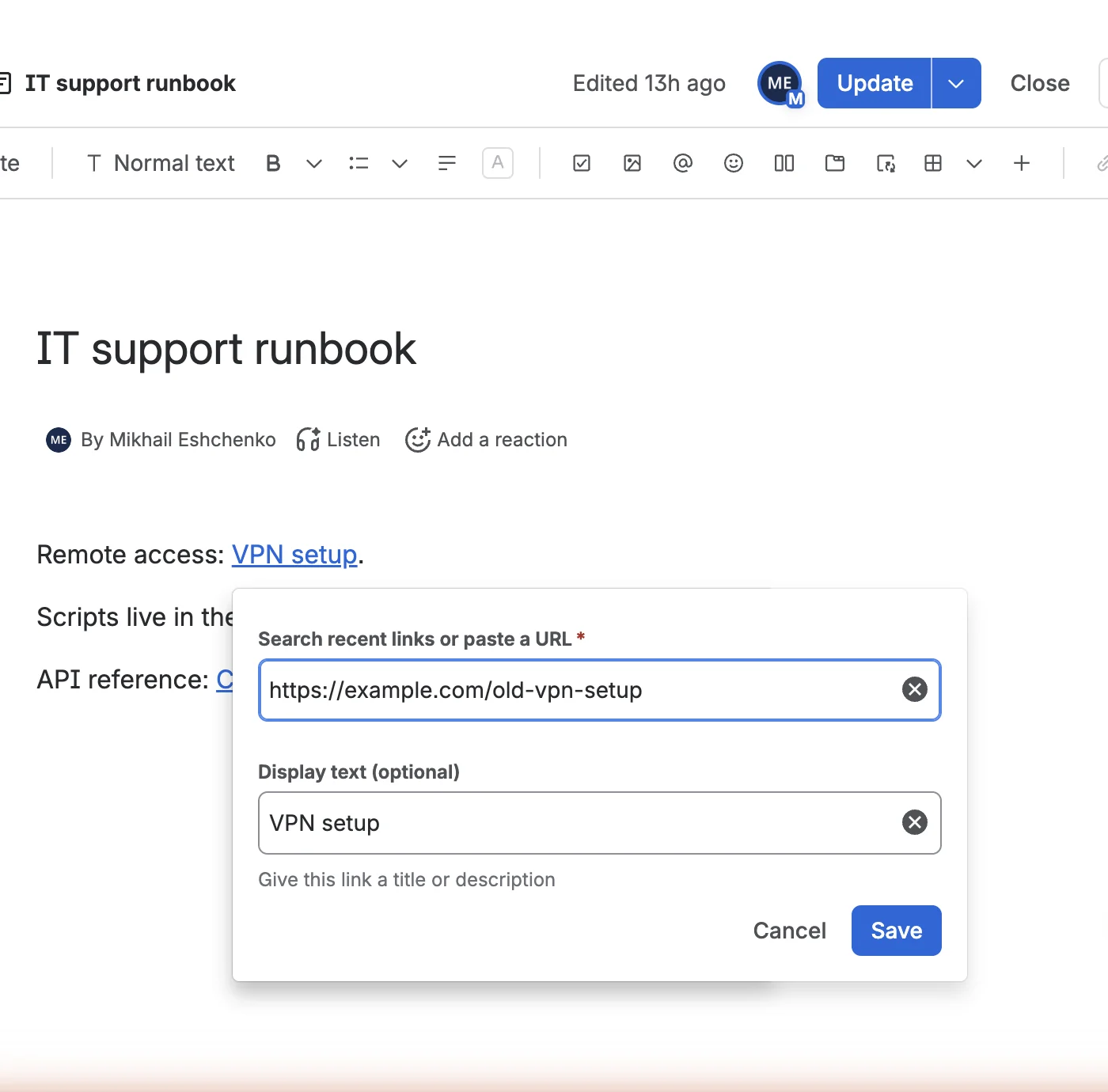 Enlarge screenshot
- Search recent links or paste a URL — the destination. Paste the replacement here.
- Display text (optional) — what readers see. Check it still describes the new destination.
- Save — saves the link, not the page.
- Update — publishes the page change.
Paste the new address, review the display text, select Save in the dialog and then Update on the page. Until you select Update, readers still see the old link.
For a link to a section of a Confluence page, do not guess the anchor. Atlassian’s method: hover to the right of the heading until the link icon appears and select it to copy the heading link. Atlassian: Insert links and anchors
Check: the published page shows the new link, and it leads to the intended content.
5. Recheck before you close the row
After a fix, walk the reader’s path again: open the published page, follow the link, confirm access, confirm the content, and for a heading or attachment link confirm the exact target. Then write the date and result in the register. Do not close a row just because the editor accepted the URL.
If you changed four links, that is four rechecks. If the same address was fixed on four pages, open it from all four.
Open the link as the reader
- 404 or 410
Page is gone
Find the current page and confirm it with the owner.
Replace the link
- Sign-in or denied
Access problem
The URL may be right. Check with the reader’s access.
Investigate access
- Timeout or 5xx
Not confirmed
The site may be down for a moment.
Retry later
- Wrong content
Opens, fails the reader
Outdated page, homepage or wrong section.
Replace the link
Every branch that changes a link ends the same way: edit the source, select Update, open it again from the published page, write down the result. That is the whole answer to how to check broken links by hand: define the pages, test, classify, fix and recheck.
Before you close the review
- The list of checked pages is written down.
- Every changed link has a verified replacement.
- 404/410 results are kept apart from access problems and timeouts.
- Restricted links were checked with the reader’s access or by their owner.
- Display text still describes the destination; heading links land on the right section.
- Changed pages were updated, not only saved in the link dialog.
- Open uncertain results have an owner and a next action.
Why a website scanner may not see your Confluence pages
An online broken link checker can only scan the pages it can open. A crawler that is not logged in cannot read Confluence pages that need a login, so a broken link checker online can return a clean report without ever reading the private pages your team uses.
The same applies to a website broken link checker, a website link checker or any link checker online. Before you rely on one to check website for broken links, ask which identity opens the source pages. Requests like “check site for broken links” or “check my site for broken links” assume the crawler can find and read the site; for a private Confluence space that is often false.
There is a second gap. A general broken link checker tool or link checker tool may report the source URL, but it does not know who owns a Confluence page. Check that each result leads back to the page that contains the link and to the person who should fix it.
When a scanner starts to pay off
The manual method is fine for a few pages now and then. The cost grows with the page count: 5 pages × 10 links is up to 50 opens; 20 pages × 15 links is up to 300; every fixed link adds a recheck.
At that scale a broken link finder or dead link finder saves the discovery work, but someone still reads the results. A 404 broken link checker is useful for missing pages, as long as it does not treat sign-in pages and timeouts as the same thing. A dead link checker should show the evidence behind “dead”. A broken link scanner should say whether the scan finished or skipped content. And a link validator can confirm that a URL responds, not that it holds the right instructions.
Whatever broken links checker you consider, including the tools a search for “broken link checker confluence” returns, check four things: which Confluence content and link types it reads; how it handles restricted pages; whether each result points back to its source page; and whether you can tell a fixed link from an old result.
| Question | Method | Main limit |
|---|---|---|
| Does this link work for the reader? | Open it from the published page | One link at a time |
| Which linked Confluence pages do not exist yet? | Space settings → Content → Undefined | No external links |
| Is it a 404, an access problem or a timeout? | Browser check with the reader’s access | Needs a person to judge |
| Did the fix work for the reader? | Recheck from the published page | Repeat for every changed page |
| Which links across a large space need review? | A link checker | Coverage and access depend on the tool |
Common questions
How do I find broken links in one Confluence page?
Open the published page and follow each link as the reader. Record failures, fix the link in the editor, select Update and open it again. For one page, this broken link check is faster than setting up a scanner.
What is the difference between a broken link checker and checking by hand?
A broken link checker collects many technical results quickly. Checking by hand answers what a scanner cannot: whether the reader can open the destination and whether it holds the right information.
Can a link checker tell whether the destination is the right document?
Not from a response code. A URL can load and still show outdated instructions, a homepage or the wrong section. Reading the destination stays part of the review.
Does Confluence list broken links natively?
Only links to Confluence pages that do not exist yet, in Space settings → Content → Undefined. External links that return 404 do not appear there.
Do I need a broken link checker for Confluence?
Not for a few important pages: the method in this guide is complete. A tool pays off when finding and rechecking links across many pages becomes the expensive part.
If you check broken links across many spaces, Broken Link Checker for Confluence scans selected spaces and keeps each result tied to its source page and owner. It is free for up to 10 Confluence users.