Broken Link Checker for Confluence / Updated 20 September 2026
Check and replace links in Confluence Cloud
Use Broken Link Checker to find broken links in a Confluence page or space, review issues with page owners, and replace URLs after checking a preview. This guide covers the interface released in version 2.4.0, scheduled scans, and the limits of each check. Watch the seven-minute tutorial to follow the same workflow on screen.
Set up a space and run a link scan
Install Broken Link Checker for Confluence from Atlassian Marketplace, or ask your site administrator to install it. A Confluence space administrator can then configure and scan a space. The app is free for sites with up to 10 Confluence users; see pricing for larger sites.
Run your first scan
- In Confluence’s left sidebar, expand Apps and select Broken Link Checker for Confluence. Expand the sidebar first if it is collapsed.
- Choose your space from the selector beside Scan space. You need space administrator permissions to start a space scan.
- Select Scan space. Public HTTPS links and supported internal Confluence page links are checked automatically. You do not need to enable external hostnames first.
- Wait for Scan complete, then select Refresh results. Read the coverage message: a finished scan can still be incomplete if it reached a limit or could not read some content.
- Open All links. Choose Broken in the link-result filter for confirmed external 404 or 410 responses. Review Unverified results separately; each row explains what prevented a conclusive check.
To check one page, open that published page’s More actions (•••) → Apps → Broken Link Checker for Confluence. Select Check this page; use Show whole space to return to the space report.
If the app is missing from Apps, confirm with your site administrator that it is installed on this Confluence site. If scanning is unavailable, check that a space is selected and that you have the required permissions.
Schedule and control scans
In Settings, choose Off, Daily, or Weekly under Automatic checks, then select Save settings. Scheduled checks start within approximately an hour after becoming due, subject to Forge availability and quotas. You can start a manual scan immediately.
Only one space scan runs at a time. Use Stop scan to stop a stalled or unwanted run before starting a fresh one.
Review link results and owner queues
My queue follows the current Confluence page owner. All links includes only pages you can currently read. Use search, owner, work-state and link-result filters. When page ownership changes, the link issues move to the new owner's queue after refresh. If an owner profile is unavailable, an administrator can still manage accessible issues and transfer ownership in Confluence.
| Link result | Meaning |
|---|---|
| Available | A public external destination returned a successful response, or the Confluence target is accessible. |
| Broken | The public external destination returned HTTP 404 or 410. |
| Unverified | The check was inconclusive. A specific reason, such as Access restricted, Timed out, HTTP link or Not checked, explains why. |
| Excluded | A space rule prevents this destination from being checked. |
| Link removed | A later check confirmed that the URL no longer appears on the source page. |
Mark in progress records work. Ignore leaves an exception outside the default queue. Reopen restores it. Recheck queues the page for another check. Success or confirmed removal resolves an earlier issue; a later failure opens it again. A link that has always been available has No issue and does not inflate the count of fixes.
Select up to 50 rows for work-state changes or page rechecks. Use Owners to review open, in-progress, ignored and resolved issues by page owner and inspect recent scans. Export loaded results (or Export CSV once all results are loaded) exports the currently filtered, loaded rows. Share exports only with people entitled to the page titles, URLs and owner names they contain.
Make sure you are reviewing the full selection
Search and filters apply to results loaded so far. Use Load more results while it is available before treating a search, owner summary or CSV export as the whole report. The default Needs action work-state filter hides resolved and ignored issues. To see a completed correction, choose All work states and All link results.
From a page, open More actions → Apps → Broken Link Checker for Confluence to review only that page and use Check this page. Show whole space returns to the space report.
Find and replace URLs across Confluence pages
- In All links, select rows on the pages you want to change, then choose Replace links. For one page, use Replace link in its row.
- Under Match, choose Exact URL for one complete address or Base URL and path for a domain or path migration.
- Check Current URL and enter the replacement in New URL. Open the destination yourself first. The new address must use HTTPS.
- Select Preview changes. Check every old/new destination and source page. Untick pages you do not want to update; include no more than 20 pages.
- Select Save changes to … pages. Keep the view open until each page has a result. Each successful save publishes a new Confluence page version; visible link text stays the same.
- Close the panel, choose All link results and All work states, and refresh after the queued check completes. Open the published source page to confirm the destination in context.
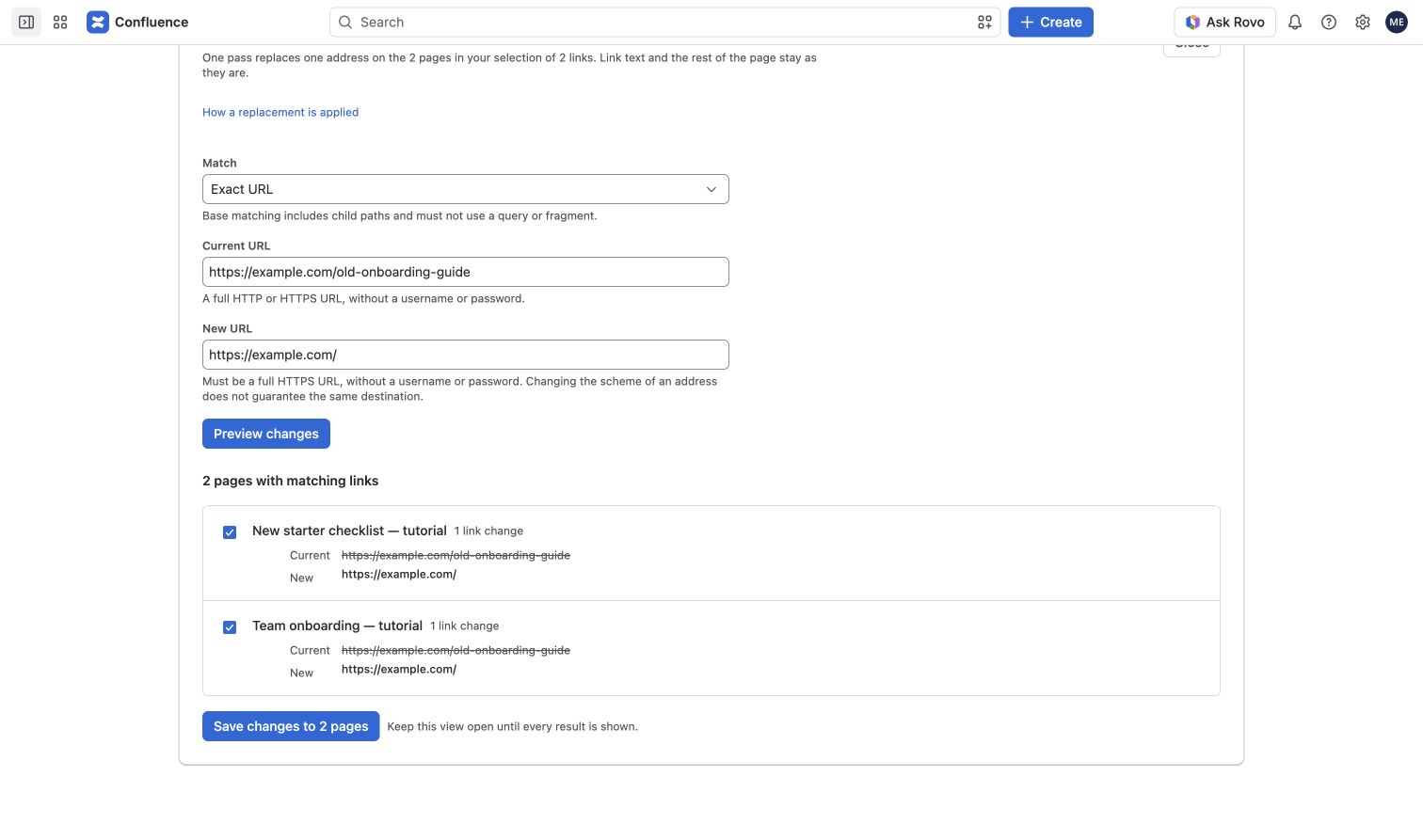
You need permission to edit each source page. A failed page does not undo pages already saved. If page content or an unpublished draft changes after the preview, that page is not updated; resolve the draft and make a fresh preview. Use Confluence version history to restore a previous page version when needed.
Exact and base URL replacement examples
Use Exact URL mode when one destination has changed. Use Base URL and path mode when a documentation site moves to a new domain or path and the remaining URL structure stays the same.
| Mode | Replacement rule | Result |
|---|---|---|
| Exact URL | Replace https://docs.example.com/old-guide with https://docs.example.com/new-guide. | Only links matching the complete old URL are replaced. |
| Base URL and path | Replace https://old.example.com/docs with https://new.example.com/help. | https://old.example.com/docs/setup?lang=en#install becomes https://new.example.com/help/setup?lang=en#install. |
Base mode matches a path boundary: /docs matches /docs/setup, but not /docs-old. Enter base URLs without a query or fragment and use an HTTPS destination. Broken Link Checker replaces link destinations, including supported Smart Links; it does not find and replace ordinary page text or visible link labels.
A domain change does not guarantee that every old path exists on the new site. Review each preview and recheck the pages after saving. For a migration worksheet and more examples, read how to replace links in Confluence Cloud. If a replacement fails, see replacement troubleshooting.
Exceptions and reminders
Exclude destinations you do not want checked
A space administrator can manage exclusions. Domain exclusions skip destinations with that exact hostname. Select rows and choose Exclude URLs for exact URL exclusions across a space. Both rules also apply to redirect destinations. An exclusion for a URL without a fragment also covers links to its sections. Remove a rule in Settings and recheck the affected pages to update results.
Save domain changes with Save settings. Removing an exclusion makes the destination eligible for its next check.
Choose whether to remind page owners
Owner reminders are off by default. Enabling them lets Broken Link Checker add a native page comment mentioning the current owner when that page has open, confirmed broken links. Ignored, in-progress and uncertain results do not trigger reminders. Repeated checks do not repeat the comment within seven days. Confluence may notify watchers according to their preferences; email delivery is not guaranteed. Select Save settings after changing this option. Turning reminders off does not remove comments already posted.
Supported links, scan limits, and recovery
Broken Link Checker reads standard hyperlinks and inline, card, and embed Smart Link destinations in published Confluence pages. It checks supported internal page targets without an external-domain rule. Public HTTPS destinations are checked unless an explicit exclusion applies. Previously enabled-hostname lists no longer restrict checks; existing exclusions remain in effect. Recheck pages to update results saved under the previous settings.
A space scan checks at most 1,000 published pages and 10,000 links, with at most 100 unique links per page. If a scan reaches a limit or cannot read a page’s content, the result is incomplete. Archived, deleted and inaccessible source pages are not exposed in your report. Plain text URLs and third-party macro internals are not scanned. URL fragments and content meaning require manual review.
HTTP links need a manual check because the Forge runtime permits only external HTTPS connections. Broken Link Checker does not replace http:// with https:// during a check. An HTTPS link whose redirect uses another protocol is shown as Redirect not checked; open the link to check it manually.
Results and work states expire after 30 days. Removed-link results are retained for up to 30 days. Each page can have up to 200 stored results, including current and removed links. Refresh after an action to see asynchronous results. Retry a failed scan when the service is available again.
Delete data and uninstall
Turn off schedules and reminders in Settings. A space administrator can choose Delete app data for this space and confirm. This clears configuration, results and work states for that space. Existing Confluence page versions and reminder comments remain Confluence content; app data deletion does not erase them. Site administrators can uninstall Broken Link Checker in Connected apps. Atlassian's platform retention policies apply after uninstallation.
For help with a scan, result, or replacement, see Support and troubleshooting.