
Jira Cloud · Work item history
How to Export Jira Issue History to Excel or CSV
Jira’s search export gives you the work items and their current field values, not one row for every past change. For a few changes, open ActivityHistory on each work item and copy who changed which field, from what to what, and when into a spreadsheet.
 Updated
 9 min read
 Tested in Jira Cloud on
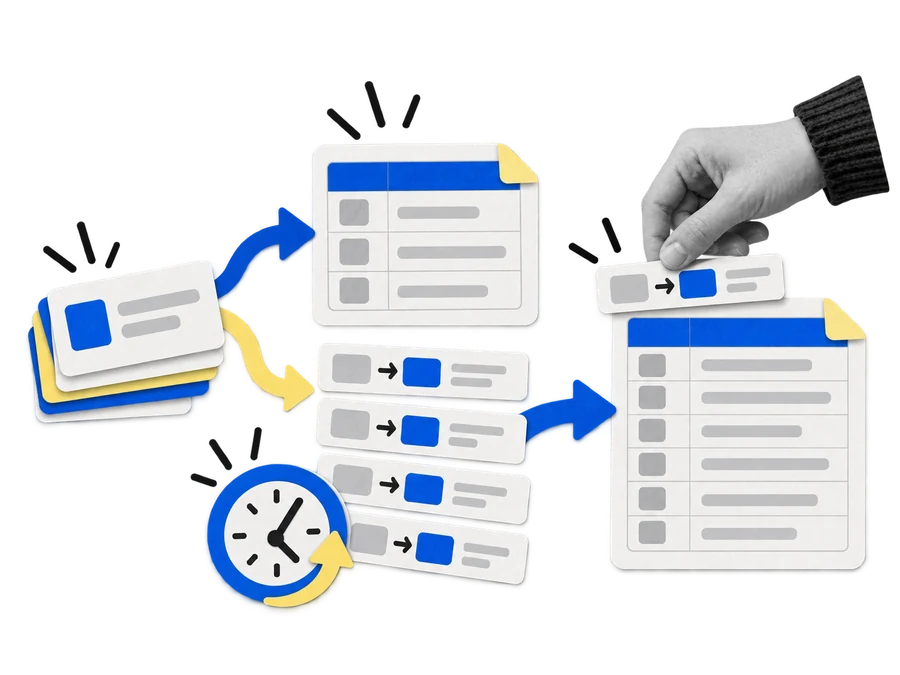
This guide shows what Jira Cloud can export on its own, how to build a change-history table by hand from the History of each work item, and where that manual work becomes too slow. Everything is done in the Jira interface and a spreadsheet, without scripts.
Short answer
- Find the work items in FiltersSearch work items.
- Export them with ••• → Export if you need their current fields.
- Open each work item → Activity → History.
- Copy each change into a table: work item, field, from, to, changed by, time shown.
- Write down the scope — search, period, fields — next to the rows.
On this page8 sections
Current fields or change history?
Decide first what the spreadsheet must answer. “What is the status of these work items now?” needs current fields. “Who changed the status, when, and from what?” needs history. One work item has one current status but can have many status changes:
| Work item | Field | From | To |
|---|---|---|---|
| ENGS-5 | Status | Waiting for support | Resolved |
| ENGS-5 | Resolution | None | Done |
| ENGS-5 | Assignee | Unassigned | Cassi Owens |
A current-fields export shows ENGS-5 once. A change table shows it three times. That difference is the whole point of any jira export issue history task.
1. Define the work items
Go to FiltersSearch work items and build the set with Basic search or JQL. Keep two things apart: which work items (“these 20 requests”) and which changes (“changes made in June”).
Write down the search or JQL, the number of results, the date you ran it, the period and the fields you care about. Without that note, a manual jira export history file is just a spreadsheet nobody can check.
Check: you can say exactly which work items are in scope before you copy any history.
2. What Jira’s Export gives you
On the search results, open ••• and choose Export.
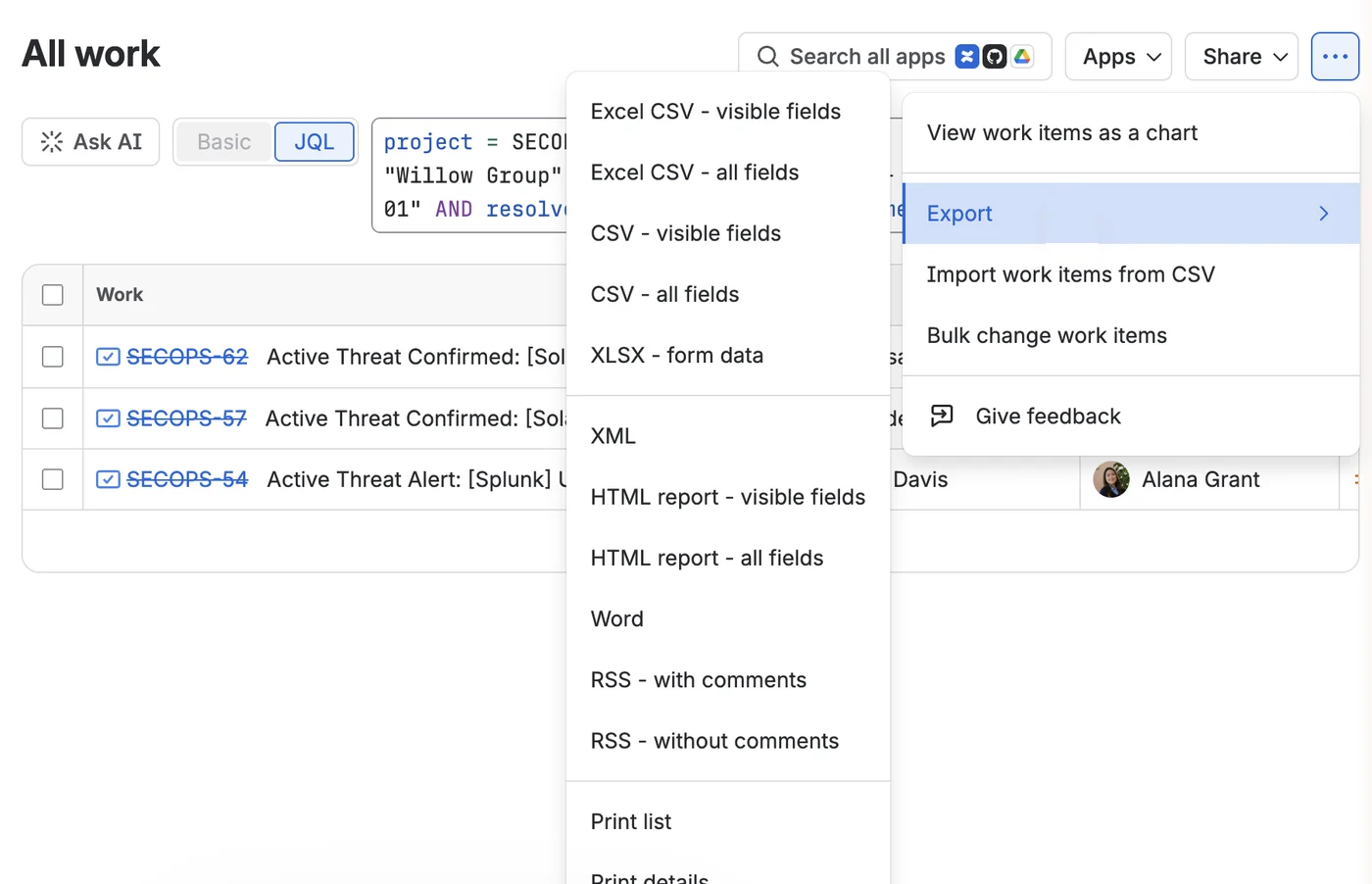 Enlarge screenshot
- ••• — more actions.
- Export.
- Excel CSV and CSV, each for visible fields or all fields — a work-item export, not one row per past change. XLSX - form data below is not a history export either.
Choose visible fields when the search columns already show what you need; choose all fields for the wider set of current work-item fields the export offers. Atlassian notes that an all-fields CSV can include comments, but comments are not field-change history. Atlassian: Export issues from Jira Cloud in CSV format
If you came here for jira export to excel, export jira to excel or a jira excel export, the Excel CSV options are the native answer for current values. Changing the file format does not turn current values into past events, and neither does saving the jira csv export as .xlsx.
Why an export is not a history table
A field that is empty today may not always have been empty. In an earlier check, the Organizations field of a test request was set and then cleared. The export would show it empty; History shows both changes:
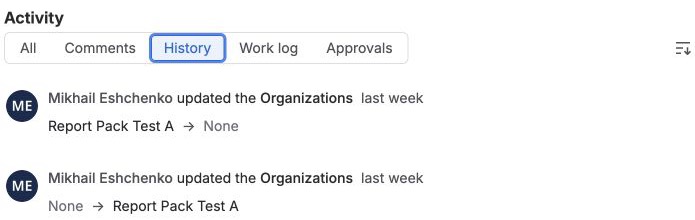 Enlarge screenshot
Check: if the question contains “who changed”, “previous value” or “when did it change”, the standard export is not enough on its own.
3. Build the change table
Open a work item, scroll to Activity, open Show: Comments and choose History. Each field change shows who made it, the old and new values and the time.
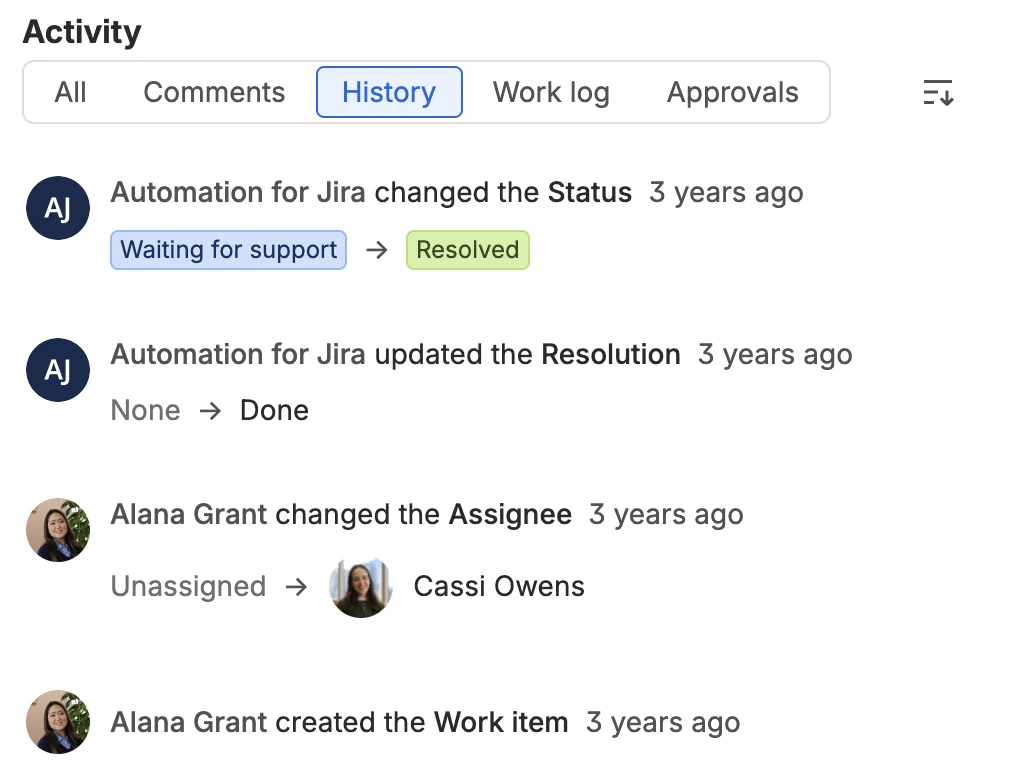 Enlarge screenshot
- Automation for Jira changed the Status: Waiting for support → Resolved.
- Alana Grant changed the Assignee: Unassigned → Cassi Owens.
Copy each relevant change into one row:
| Work item | Field | From → To | Changed by | Time shown |
|---|---|---|---|---|
| ENGS-5 | Status | Waiting for support → Resolved | Automation for Jira | 3 years ago |
| ENGS-5 | Assignee | Unassigned → Cassi Owens | Alana Grant | 3 years ago |
Copy the time exactly as Jira shows it; a relative time such as “3 years ago” is not a date. If you copied only some events, call the file a manual extract, not a full export. If Jira does not show the actor or a value, write “unknown” rather than guessing.
Downloads for this guide
Free, no sign-up
- Blank history review sheet
Work item, field, from, to, changed by, time shown in Jira, where you read it, checked on, notes.
 CSV · 1 KB
 - Filled example
The three ENGS-5 changes from this guide, with sample data.
CSV · 1 KB
Reading History in more depth — the relative times, automation as the actor, the audit log — is covered in How to View Jira Issue History: Status, Assignee and Field Changes.
Check: actor, field, old value and new value in each row come from the same History entry.
4. Narrow the items with JQL
JQL history operators can cut the number of work items you open:
project = ENGS AND status CHANGED FROM "Waiting for support" TO "Resolved" DURING ("2023-06-01", "2023-06-30")On the test site this returned six work items. That is a list of items, not six spreadsheet rows: you still open each one and copy its History. CHANGED and WAS work for Assignee, Fix Version, Priority, Reporter, Resolution and Status. For a custom field or the due date, Jira answers “History searches do not support the … field”, and you read each item. Atlassian: JQL operators
How much manual work is it?
Three work items with one change each: three History views, three rows. Easy. Forty work items with about three relevant changes each: forty History views and about 120 rows to copy and check. The native method still works; the cost is the opening and copying.
Native export or an app?
Choose by the output you need, not by the name of a product category.
| Need | Method | What to check |
|---|---|---|
| Current values for many work items | Jira search → Export | Scope and columns |
| A few known changes | History + manual table | Every row matches History |
| Which items had a supported change | JQL CHANGED / WAS | Field supported, period right |
| Many change rows without copying | History export software | Fields, row layout, permissions, scope, gaps |
If you are looking at a jira excel plugin, confirm it exports past events, not just current fields in another file format. Before you rely on any issue history for jira app, open a sample: one row should name the work item, time, actor, field, old value and new value. A jira reporting app covers many reporting needs, so check that change history is really part of its data. When you compare jira reporting plugins, check custom fields, permissions, the date range and whether gaps in the data are visible. Teams with a developer can also read history through the Jira API, but that is an engineering project, not the manual workflow here.
Check before you share
What must the spreadsheet answer?
- Values now
Search → Export
Current fields, one row per work item.
Excel CSV or CSV
- One item’s changes
Activity → History
Who, field, old → new, time shown.
Copy the rows
- Which items changed
JQL CHANGED / WAS
Six supported fields only.
Then open each
- Many items, many changes
No native table
One History view per item.
Copy by hand or use a tool
Whatever produced the table, check one known event against Jira: open the work item, go to History, find the change and compare the field, old value, new value and actor with your row. Keep the scope note with the file. For a jira issue history report, one row per change is far easier to audit than one row per work item with several changes squeezed in.
If someone asks for a jira export ticket history, agree what “history” means first: here it is field changes, not comments, work logs or the admin audit log. The same goes for issue history for jira in general: it is the changes you see in ActivityHistory.
Before you finish the export
- The work-item scope matches the question, and the period is written separately.
- Current fields are not presented as past events.
- Every copied row comes from a History entry, with the time as Jira shows it.
- JQL was used only to find items, not as the record of changes.
- A partial file is labelled as a manual extract.
- At least one known event matches the final table.
Common questions
Can Jira export issue history natively to CSV?
Jira exports search results to CSV, but not one row for every past field change. For a few changes, copy the History entries into a CSV yourself.
Does a jira export include old and new values?
Not as a history table. The standard jira export lists work items with their current values. Old and new values are in each work item’s History.
Can I export Jira history to Excel without an app?
Yes, for a small review: read the History entries and type or paste them into Excel. To export jira history to excel for many items, the work grows with every item and every change.
Is ticket history the same as comments?
No. Comments can appear in an all-fields CSV, but they are a different kind of data from field changes.
Can JQL list the changes themselves?
No. CHANGED and WAS return work items that match, for six supported fields. The actor, old value and new value stay in each item’s History.
If you need this table often, Issue History Export – Excel & CSV for Jira exports one row per field change across many work items, custom fields included. It is free for teams of up to 10 users.