
Jira Cloud · Work item history
How to View Jira Issue History: Status, Assignee and Field Changes
Open the work item, go to Activity, open Show: Comments and choose History. Each entry shows who changed which field, from what to what, and when. For many work items, JQL finds the items first; you then open each one.
 Updated
 10 min read
 Tested in Jira Cloud on
This guide shows how to view Jira ticket history for one work item and for a set of work items, what JQL can and cannot find, and where the work-item history stops and the Jira audit log begins. Everything here is done by hand in the Jira Cloud interface, without scripts.
Short answer
- Open the work item and scroll to Activity.
- Open Show: Comments and choose History.
- Read each entry: who, which field, old value → new value, when.
- For many work items, find them with JQL:
status CHANGED FROM … TO … DURING …. - Open each result and read its History. JQL finds items; it does not list the changes.
On this page7 sections
Which source answers which question
Jira keeps the change history of every work item. Where you read it depends on the question: one work item, many work items, or the configuration of Jira itself.
| Question | Where to look | What you get | Limit |
|---|---|---|---|
| Who changed this field on one work item, and from what to what? Go to the steps ↓ |
ActivityHistory | Who, field, old value, new value, relative time | One work item at a time |
| Which work items had a status or assignee change? Go to JQL ↓ |
JQL with CHANGED or WAS | A list of matching work items | No old and new values in the list |
| Who moved items from one status to another in a period? | JQL first, then each item’s History | Matching items, then the details | You open every item by hand |
| Did a custom field or the due date change? See the limit ↓ |
History of each work item | Per-item details | CHANGED does not work for these fields |
| Who changed Jira configuration? Go to the audit log ↓ |
Admin audit log | Administrative and configuration events | Not a record of work-item field changes |
Read the history of one work item
The example is ENGS-5, “Need new rev gen analysis”, in a Jira Service Management sample project. The question: who resolved it, a person or automation?
-
Step 1: Switch Activity to History
Open the work item and scroll to Activity. Open the Show: Comments dropdown and choose History.
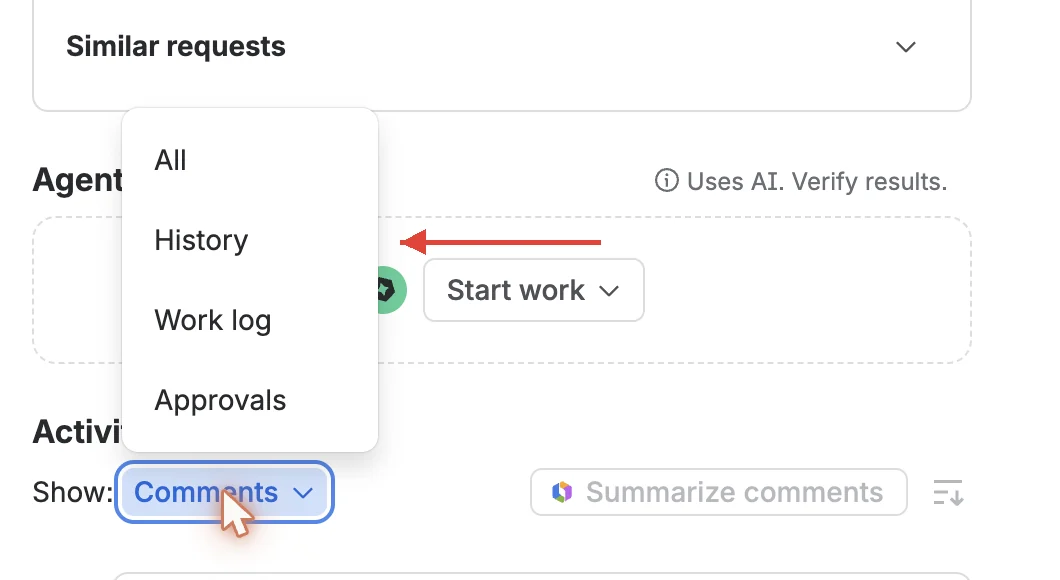 Enlarge screenshot
- Show: Comments — the Activity filter. Comments is the default.
- History — the list of field changes.
Jira does not remember this choice. The next time you open a work item, Activity shows Comments again.
Check: Activity now shows the tabs All, Comments, History, Work log and Approvals (Work log and Approvals depend on the project), and History is selected.
-
Step 2: Read who changed what
Field-change entries follow the same pattern: who → changed which field → old value → new value → when. Other entries look different; creation, for example, appears as “Alana Grant created the Work item”.
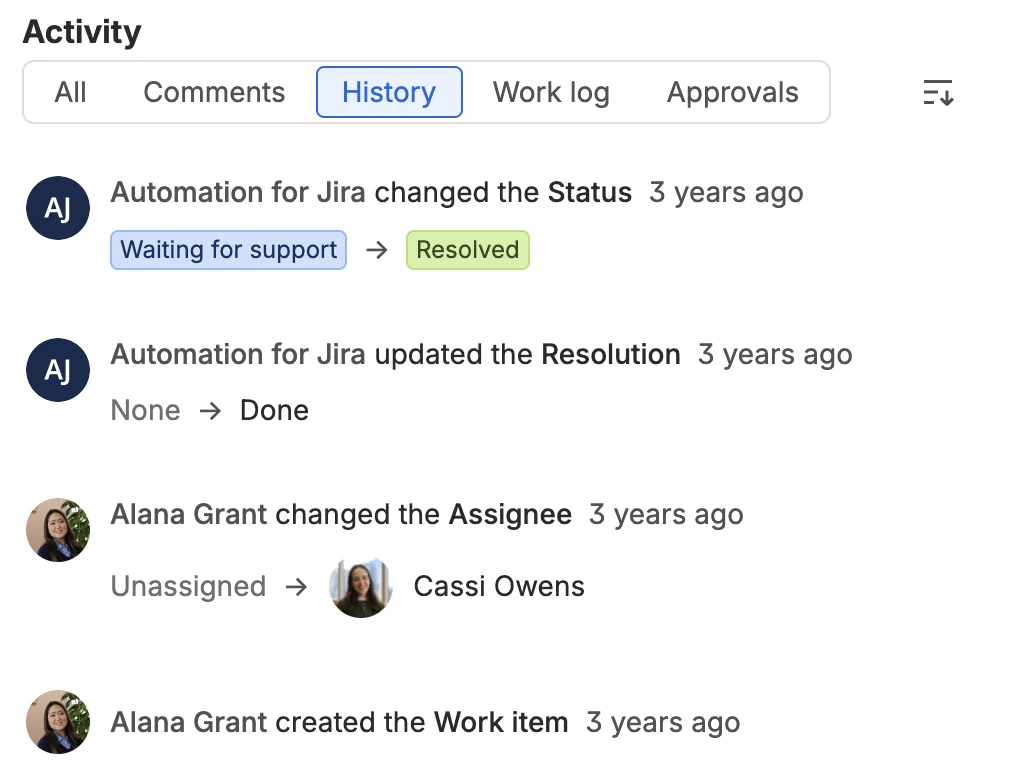 Enlarge screenshot
- The History tab.
- Automation for Jira changed the Status from Waiting for support to Resolved — a rule did it, not a person.
- Alana Grant changed the Assignee from Unassigned to Cassi Owens — a person did it.
So the answer for ENGS-5: a person assigned it, and an automation rule resolved it. Do not guess the actor from the current value of the field; read the entry that changed it. This is the issue history Jira keeps for every work item: status, assignee, resolution, other fields and the creation itself.
The time in History can be relative, for example “3 years ago”. In your notes, copy the time exactly as Jira shows it; do not convert it to a calendar date without another verified source.
Check: for each change you care about, you can name the actor, the field, the old value, the new value and the time shown.
Find many work items with JQL
When the question covers many work items, for example “which requests were resolved in June?”, start with a search. Go to FiltersSearch work items and switch to JQL.
Status changes in a period
project = ENGS AND status CHANGED FROM "Waiting for support" TO "Resolved" DURING ("2023-06-01", "2023-06-30")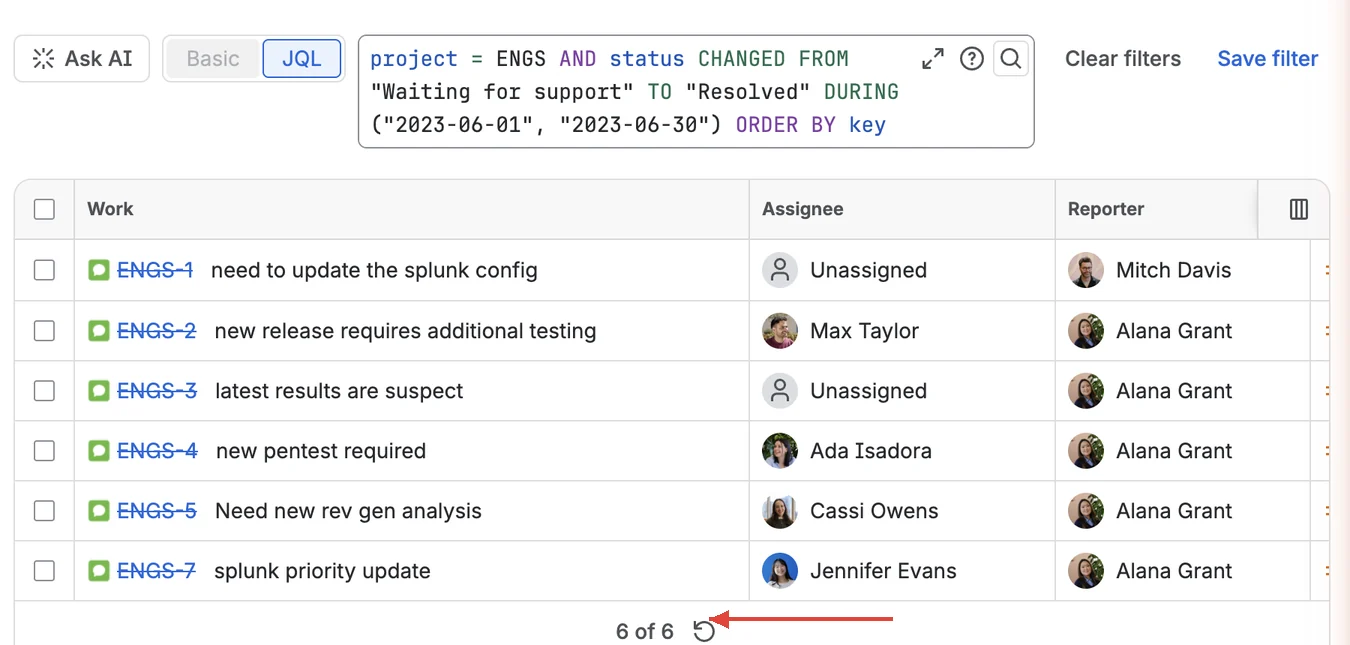 Enlarge screenshot
- The query: the status changed from Waiting for support to Resolved during June 2023.
- The result: six work items.
- 6 of 6 — the count of matching items.
The result is a list of work items, not a list of changes. For Jira status history, you still open each of the six items and read its History to see who changed the status and when.
Assignee changes made by you
assignee CHANGED BY currentUser() AFTER -30dThis finds work items where you changed the assignee in the last 30 days. It is a quick start for Jira assignee history: you get the items, then the History of each one shows the old and new assignee.
Atlassian supports CHANGED and WAS for six fields: Assignee, Fix Version, Priority, Reporter, Resolution and Status. CHANGED supports FROM and TO; both operators support BY, DURING, AFTER, BEFORE and ON. Use CHANGED when the change itself matters; use WAS when you need work items that have or had a specific value. Atlassian: JQL operators
Check: the query returns the work items you expected, and the count matches.
What JQL cannot show
JQL has two limits that decide how much manual work a Jira change history review takes.
First, it finds work items, not changes. There is no native screen with one row per change across many work items. For the six June results you open six items, switch each to History and copy the rows. For a quarter of a busy service desk, that can be hundreds of items.
Second, CHANGED does not work for every field.
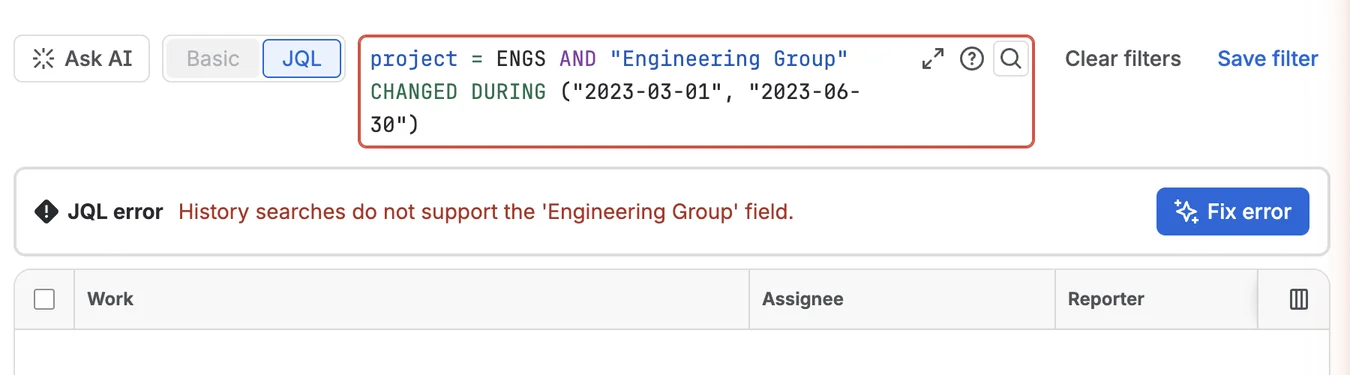 Enlarge screenshot
- The query with
"Engineering Group" CHANGED, a custom field. - The error: History searches do not support the 'Engineering Group' field.
The due date gives the same error: “History searches do not support the 'duedate' field.” So the Jira field change history for a custom field or the due date cannot be filtered; you read the History of each work item.
When the Jira audit log is the right place
The Jira audit log answers a different question: who changed the configuration. Go to SettingsJira admin settingsSystemAudit log (under Troubleshooting and support). You need Jira admin rights.
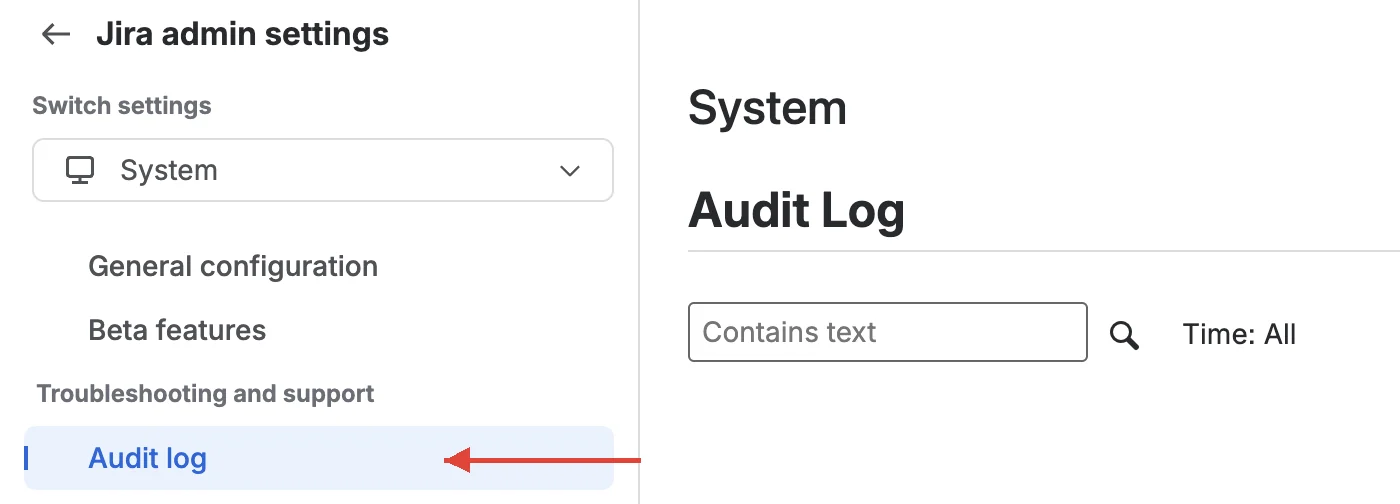 Enlarge screenshot
- Audit log under Troubleshooting and support.
- The Audit Log page.
- Contains text and Time: All — search and period filters.
The audit log records administrative and configuration events. Atlassian says it is not intended to record all activity in Jira. For a status, assignee or resolution change on a work item, use the work item’s History.
If someone asks for a Jira audit trail, clarify the scope first. For work-item field changes, use each item’s History; for configuration changes, use the admin audit log. Each source can be part of an audit trail, but keep its origin clear. If someone asks for the Jira activity log, ask whether they mean ActivityHistory on a work item or the admin audit log.
Record what you found
What changed, and on how many work items?
- One work item
Activity → History
Who, which field, old value → new value, when.
Copy the entry
- Many items · supported field
JQL CHANGED or WAS
Status, Assignee, Priority, Reporter, Resolution, Fix Version.
Open each History
- Custom field · due date
No history search
JQL cannot filter these changes.
Read item by item
- Configuration
Admin audit log
Settings and administrative events, not field changes.
Ask a Jira admin
Copy each change into a table: work item, field, from, to, changed by, time shown, where you read it. A manual Jira history review is slow, but every row can be checked: anyone can open the work item and see the same entry.
Downloads for this guide
Free, no sign-up
- Blank history review sheet
Work item, field, from, to, changed by, time shown in Jira, where you read it, checked on, notes.
 CSV · 1 KB
 - Filled example
The three ENGS-5 changes from this guide, with sample data.
CSV · 1 KB
Before you close the review
- Every row names the actor, not only the final value.
- Old and new values come from the same History entry.
- Each JQL result you rely on was opened and its History read.
- Work-item History and audit-log entries are marked as different sources.
Common questions
Is there a Jira view issue history button?
There is no separate button. Open the work item, go to Activity, open Show: Comments and choose History. The choice is not remembered, so you select History again on the next work item.
Does the change history include status and assignee changes?
Yes. History shows status, assignee, resolution and other field changes, with the actor and the old and new values. To search across many work items, JQL supports CHANGED and WAS for Assignee, Fix Version, Priority, Reporter, Resolution and Status.
Can I get a Jira history of changes for many work items in one table?
Not natively. JQL finds the matching items for supported fields; the old and new values and the actor come from each item’s History. A table for many items means opening them one by one and copying the rows.
Is the history of Jira work items recorded in the audit log?
No. Field changes on work items are in each item’s History. The audit log records administrative and configuration events.
Do I need audit trail software to investigate a Jira change?
Not for a few work items: History and JQL are enough. Software helps when you need one record across many work items or fields and do not want to copy History entries by hand.
If you need this table regularly, Issue History Export – Excel & CSV for Jira exports one row per change — work item, time, author, field, old value and new value — across many work items, custom fields included. It is free for teams of up to 10 users.