
Your monthly
customer reports,
taken care of.
Create PDF and CSV reports for each customer organization in Jira Service Management Cloud. Schedule the monthly run, then review and share the files.
Free for up to 10 licensed users. View pricing.
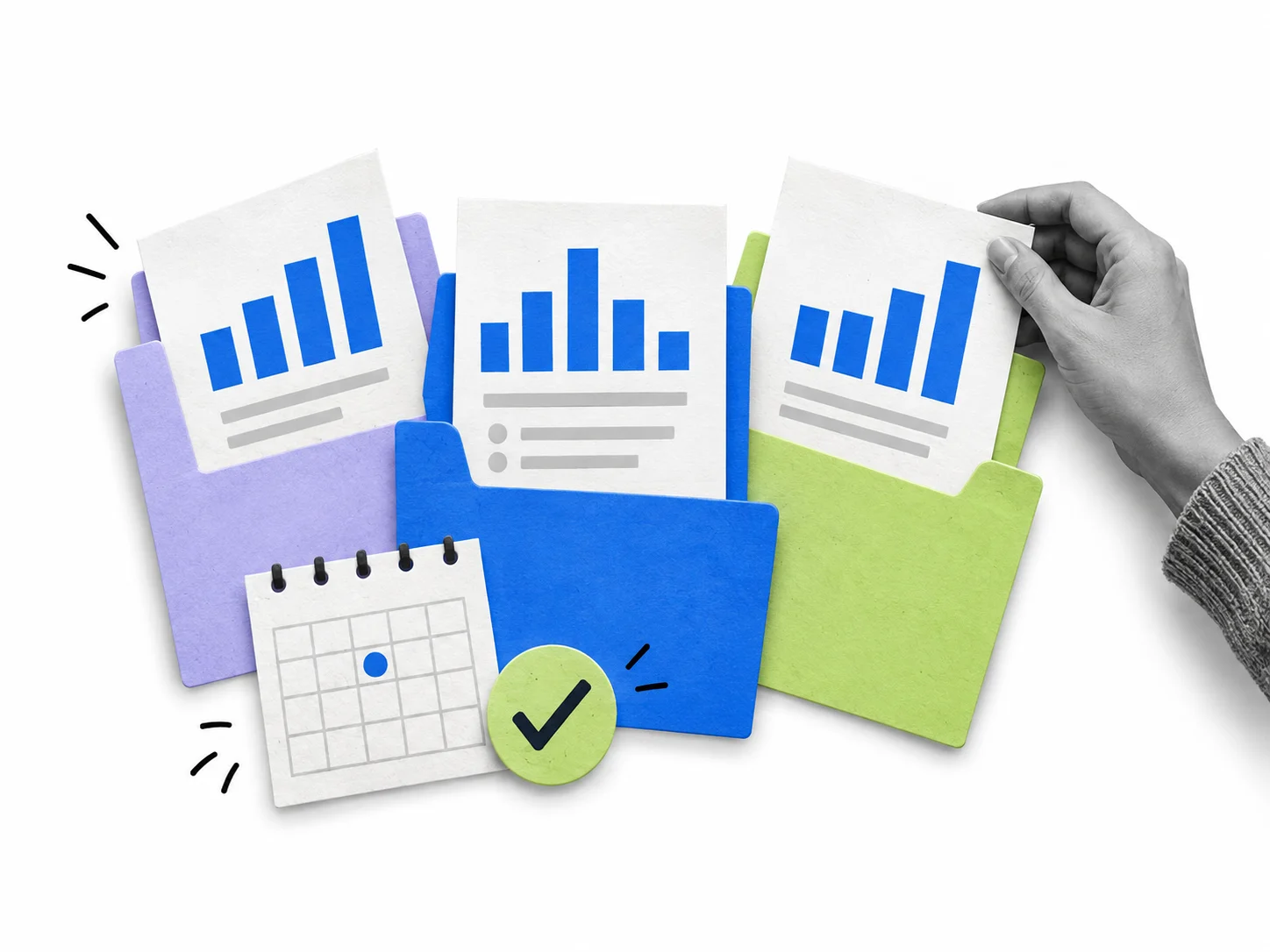
Set up the routine.
Keep the final say.
Generate reports for all your selected customers in one run, then review each customer's files.
-
1. Choose
Choose your customers.
Select your service projects, organizations, and existing SLA metrics. Add your branding and save the setup for next month.
-
2. Schedule
Set the monthly schedule.
Set a monthly schedule and timezone. The app prepares reports in the background, even after you close your browser. You can also start a run manually.
-
3. Review
Review and share.
Review the reports and coverage notes. Download each customer's files to share, or the full ZIP for your own records.
Illustrative workflow with fictional organizations.
A report your
customer can read.
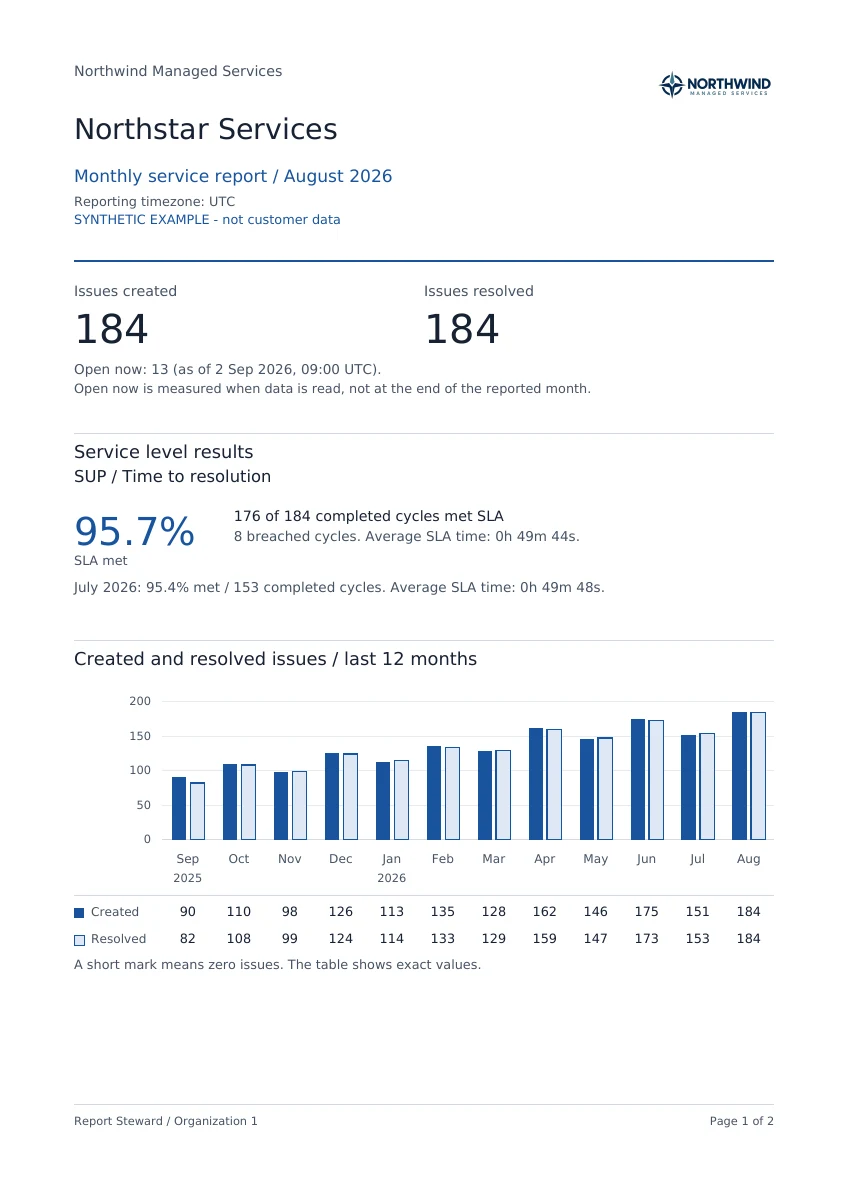
See a complete monthly report for a fictional customer, in the PDF and CSV formats the app provides.
- Requests created and resolved
- Completed SLA cycles and comparison with the previous month
- 12 months of request volumes
- Open requests at the time the data was read
Northstar Services · August 2026 · Synthetic example, not customer data. The preview shows page 1; the PDF includes the full report and notes.
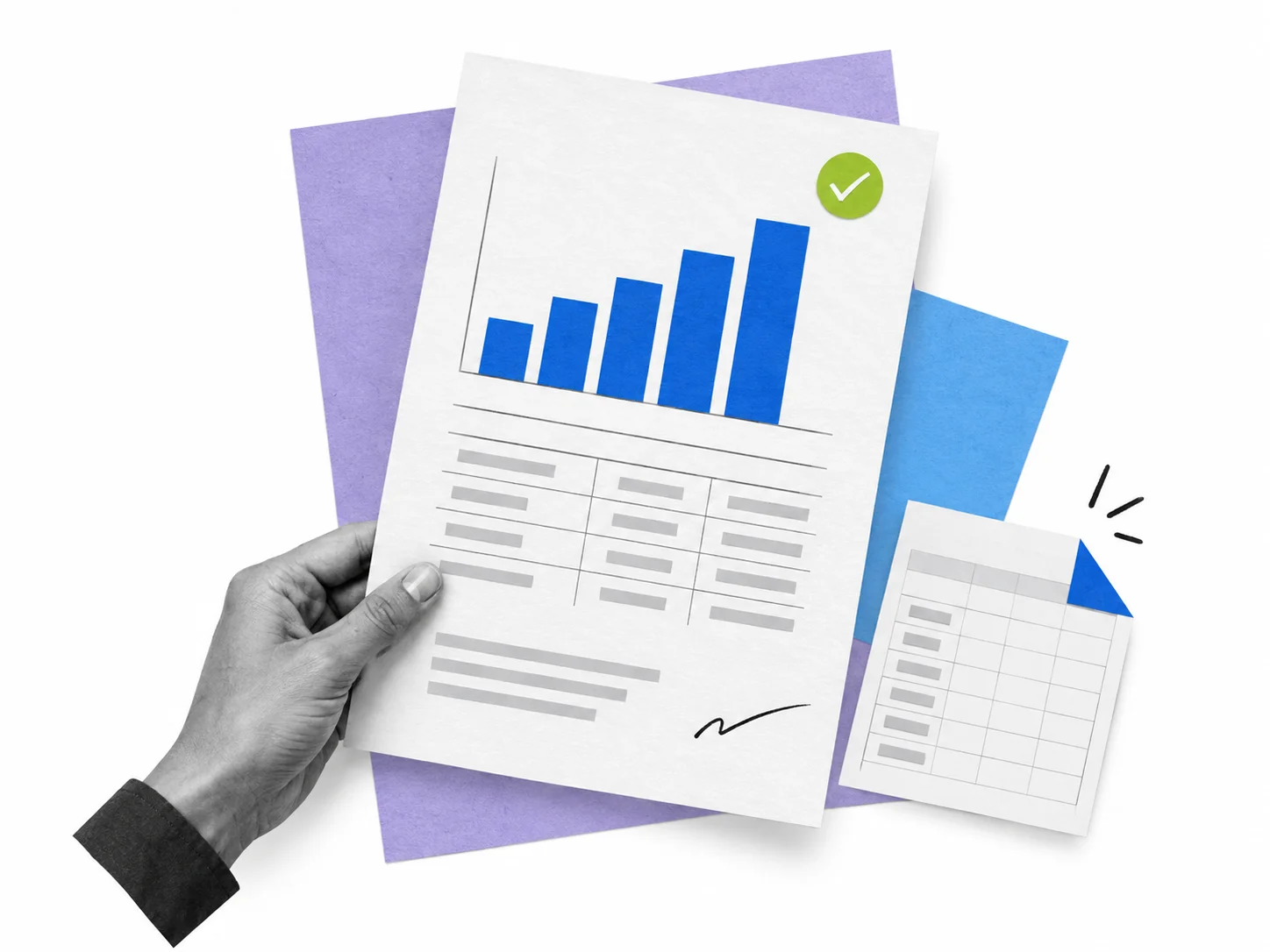
View two more customer examples
Know what the
numbers mean.
Client Reporting Software uses the SLA metrics already configured in Jira Service Management. You choose what belongs in the report and review the details before sharing it.
- SLA results count completed cycles; request volumes count individual requests.
- Open requests are counted when the data is read, with a timestamp shown in the report.
- Coverage notes identify exclusions and missing data so you can check the result.
Straightforward pricing.
All features included. Pricing is based on your Jira user tier, not on the number of customer organizations or report formats.
Free for up to 10 licensed users.
$0.01USD per user / month
For every licensed user on sites above 10 users. Taxes are additional where applicable. Atlassian Marketplace handles trials, subscriptions and billing.
Pricing follows the licensed user count required by Atlassian for your Jira/JSM site, not only the people opening this app.
Annual subscriptions use the upper end of the applicable user tier, priced at 10 monthly payments.
More about Client Reporting Software for Jira Service Management
Among reporting tools for Jira Service Management, this one does a single job: a monthly PDF and CSV report for each customer organization, built from one saved setup. Your team members review the files before they go out, so every client relationship gets the same report structure each month.
Prepare monthly service files for every customer organization you support in Jira Service Management Cloud. Setup is saved once, and each completed month turns into separate branded PDF/CSV documents. An internal ZIP keeps everything together for records.
If you compare client reporting software, client reporting tools, Jira reporting tools, or any client reporting tool, this app has one narrow purpose: prepare monthly documents from Jira records you can access. It adds no live analytics layer, no customer portal, no extra delivery channel.
- Save projects, customer selection, native JSM SLA metrics, timezone and branding once.
- Generate any completed month on demand.
- Or pick a day and timezone so last month is prepared in the background, even with the browser tab closed.
- Each organization gets its own branded PDF/CSV pair.
- One internal ZIP keeps every document together for your records.
- Generated files stay available for 35 days, giving teams one repeatable client reporting process without rebuilding the setup.
- Ticket volumes created and resolved across 12 completed months.
- Current open issues shown separately from monthly volumes.
- Native SLA results compared with the previous month, where SLA totals count completed cycles.
- Missing SLA values stay N/A.
- Jira SLA comes from native JSM metrics in the saved setup.
- These documents can support a monthly SLA report, SLA reports, or an SLA compliance report without changing how source values are treated.
- Review every organization's documents before sharing.
- Send them through your own channel; this app does not email customers.
- Reports use current organization membership and Jira records you can access at generation time.
- Output: PDF/CSV only.
- No Excel output or customer portal.
- No client reporting dashboard, multi client reporting dashboard, or SLA dashboard: monthly PDF and CSV files replace a dashboard here.
How month-end looks
- On the chosen day, last month is ready for review.
- Service managers can open each customer's PDF to check ticket volumes and SLA results.
- Reviewed documents go out through the team's own channel; the app does not send them.
For teams looking for a client reporting solution, scope stays focused on preparing documents with saved branding and customer selection. That setup is kept for repeated monthly generation, with PDF and CSV output only.
A monthly client report template keeps recurring service reviews consistent. Here, each generated PDF works as a client report example built from accessible records: ticket volumes, open issues and native SLA results. The structure is generated, not edited as a separate template.
Teams can use these client reports for recurring service reviews. Automated reporting for clients means the monthly schedule prepares last month; nothing is sent automatically. Searches for client reporting automation tools may suggest delivery automation, but this app stops after preparation and review stays with your team. Automated client reporting here means preparation, not email delivery.
Quick answers
Can I create a completed month without waiting for a schedule?
Yes. Generate it on demand to get Jira reports and JSM reports before the next scheduled run.
What happens on the scheduled day?
Last month is prepared in the background, even with the browser tab closed. Nothing is emailed to customers.
What data appears for each organization?
The three blocks described above. They support service desk reporting, help desk reporting, and Jira service management reporting from accessible records.
How are SLA values handled?
As described above: completed cycles only, and missing values stay N/A. Generated PDFs can serve as service desk reports without replacing missing values.
Can I get Excel output or use helpdesk reports as a live view?
You can export reports from Jira as PDF/CSV through this app. Excel output and live dashboards are not available.
Who sends final documents?
You do, after review, through your own channel. The app prepares the files but does not email customers.
JSM customer reporting FAQ
What the reports include, how scheduling works, and what to check before sharing.
Contact Client Reporting Software supportWho is Client Reporting Software for?
Support managers and managed service providers using Jira Service Management Cloud to support multiple customer organizations. It prepares monthly reports you can review and share with those customers.
Can I prepare reports for several organizations in one run?
Yes. Save a setup covering your selected service projects and organizations. Each selected organization gets separate PDF and CSV files. You can download one customer's files or the full report pack.
How much data can I report on?
One run reads up to 5,000 visible issues across the selected service projects, including issues outside the reported month. A setup supports up to 10 service projects and 100 customer organizations. Check the full limits before choosing your projects.
Do scheduled reports run with my browser closed?
Yes. The monthly schedule runs in the background using your saved setup. You can pause the schedule or start a report manually.
Does it email reports to customers?
No. Client Reporting Software prepares the reports for you to review and download. You share them through your existing email, file sharing, or customer communication channel.
Do I need to recreate my SLA rules?
No. Select the native SLA metrics already configured in your Jira service projects. The report uses their recorded results. The report counts completed SLA cycles separately from resolved requests.
Can I use my own branding?
Yes. Add your brand and logo to the reporting setup. Each customer's PDF uses that branding.
Does “currently open” mean open at month-end?
It means unresolved when the data was read, with that time shown in the report. It is not a reconstruction of the backlog at the end of a past month. Read the metric definitions.
Do customers need to open the app?
No. They receive the report files you choose to share. They can read the PDF in their usual PDF viewer and open the CSV data in a spreadsheet.
Make next month's
reports a routine.
See what your customers receive before you set up your first report.
View the sample report