
Jira Cloud · Follow-ups
How to Set a Reminder in Jira Without Changing the Due Date
Jira has no “remind me” action on a work item. Without touching the due date, you can keep a follow-up list with a daily filter subscription, add a separate Follow-up date field, or let an automation flow email the assignee on that date.
 Updated
 9 min read
 Tested in Jira Cloud on
The example is a support request, SECOPS-165 “Reset MFA for Willow Group admin”. Its real due date is 9 October 2026. The service manager wants to come back to it tomorrow, 3 October, at 09:00, to check that the customer can sign in. Moving the due date to 3 October would turn a follow-up into a false deadline, so the Jira follow up has to live somewhere else.
Short answer
- Keep the real due date. It stays 9 October.
- For yourself: watch or label the work item and subscribe to a saved filter daily.
- For a real follow-up day: ask an admin for a Follow-up date field and subscribe to a filter of follow-ups that are due.
- For the team: a daily automation flow on that field emails the assignee.
- Clear the marker or the date after you follow up.
On this page7 sections
Why there is no “remind me” in Jira
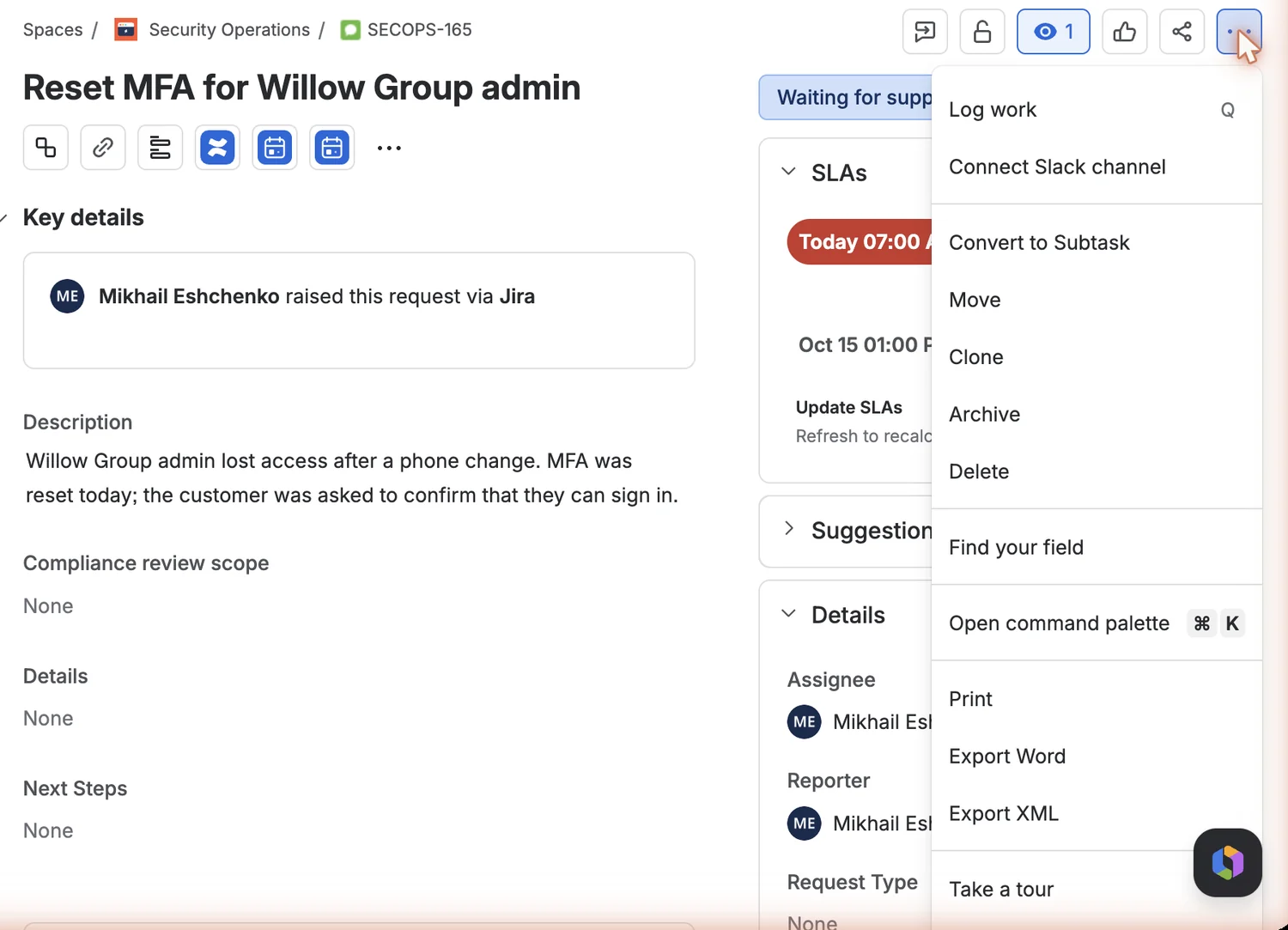
Open a work item’s ⋯ menu and you will find actions such as Log work, Move, Clone, Archive and the export options — but no reminder. If you search for “jira remind me”, there is no built-in command behind it.
 Enlarge screenshot
- The work item’s ⋯ menu — no reminder action.
- The example work item, SECOPS-165.
Atlassian’s public request “Ability to set reminders on issues at a specific date/time” (JSDCLOUD-12377) was opened in 2014 and was still unresolved, under review, when checked on 2 October 2026. Until it ships, each Jira reminder is built from filters, fields or automation.
A personal follow-up list
The lightest option is a list of work items you want to come back to, emailed to you every morning. Mark the work item — watch it, or add a label such as follow-up — and save a filter:
project = SECOPS AND watcher = currentUser() AND statusCategory != Done ORDER BY updated DESCKeep the project in the query. On the test site, the same filter without project = SECOPS returned 307 open work items — far too many to work as a jira task reminder list. With the project, it returned SECOPS-165 only. A label is more precise than watching, because you add it only to items you really want to follow up.
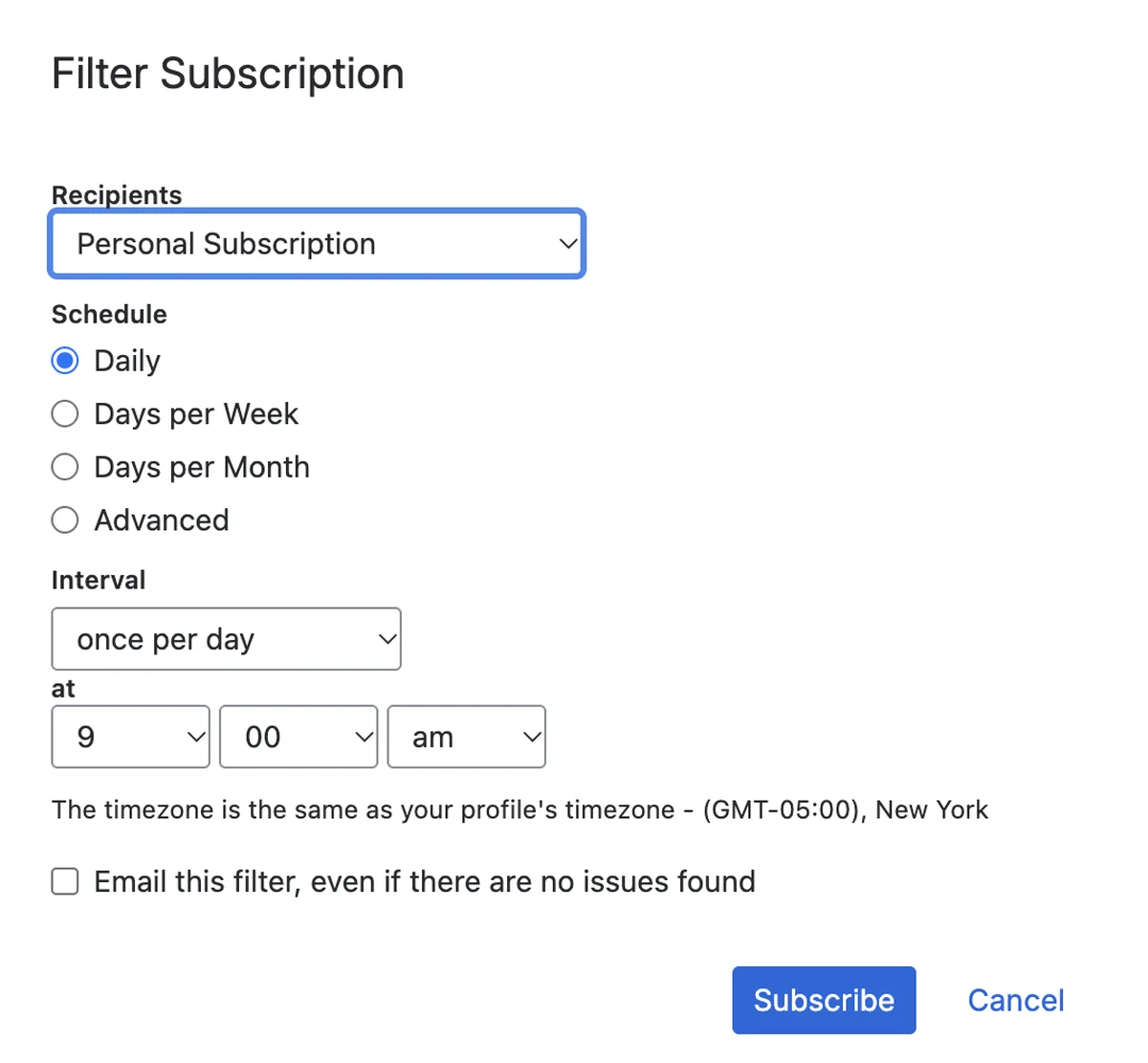
Save the filter, open Filter details, select Add subscription and choose Daily:
 Enlarge screenshot
- Daily.
- once per day at 9:00 am. The interval can also repeat every 15 minutes to every 3 hours.
- The schedule follows your profile’s time zone.
The subscription sends email reminders as one list (up to the first 200 results) to you. It can also go to a group you belong to if you have the Manage Group Filter Subscriptions global permission. Tick Email this filter, even if there are no issues found only if an empty email is useful to you.
Check: the filter shows only your follow-ups, and the subscription is listed in Filter details.
A Follow-up date field
When the day matters, store it in its own field instead of the due date. Ask a Jira admin to add a Date picker field named “Follow-up date” to the work type (in team-managed spaces, a space admin can add fields). For the example: due date 9 October, Follow-up date 3 October.
Then save a filter of follow-ups whose day has come and subscribe to it daily, as above:
project = SECOPS AND "Follow-up date" <= endOfDay() AND statusCategory != Done ORDER BY "Follow-up date" ASCThis is a clearer follow up reminder than a label: the work item carries the date, everyone who can view the field sees it, and overdue follow up reminders stay in the list until someone acts.
Check: on the follow-up day the work item appears in the filter, and its due date still says 9 October.
An email on the follow-up date
For team-wide Jira task reminders — an email to each assignee instead of one list — build a daily automation flow on the same field. The steps are the same as for due dates in the due date reminder guide; only the query changes:
project = SECOPS AND "Follow-up date" = startOfDay() AND statusCategory != DoneUntick Only include work items that have changed since the last time this flow executed, add Send customized email to the Assignee user field, and choose Plain text: smart values work there as written (in Rich text the editor asks you to wrap them in inline code). The flow sends reminder emails one per matching work item, for example with the subject Follow up: {{issue.key}} {{issue.summary}}.
How much upkeep each method needs
SECOPS-165 · due 9 October · follow up 3 October, 09:00
- Label or watch
Daily list
Every marked item, every morning.
Remove the marker after
- Follow-up date
Dated list
Items whose day has come.
Clear the date after
- Date + flow
Email per item
To the assignee, at one shared time.
Admin keeps the flow
- Due date
Do not move it
It stays the real deadline.
Untouched
Every native method needs two edits per follow-up: set the marker or date, then clear it. Thirty follow-ups this week mean thirty markers or dates to keep in order. The subscription or the flow saves you from checking Jira by hand, but it does not maintain the follow-ups for you.
What to check in a reminder app
If the native setup takes more effort than the reminders themselves, a reminder app for Jira can keep the reminder on the work item. Compare tools on the actual workflow:
- Recipients. A good reminder tool shows who gets the email before you save: you, the current assignee, named colleagues. Check whether “current assignee” is resolved when you save or when it is sent.
- Time. Does each reminder have its own date, time and time zone, or does the reminder software run on one global schedule?
- Repeats. A recurring reminder needs a clear end: an end date, and what happens when the work item is Done. Recurring reminders that never stop become noise.
- Delivery. Email reminder services should show whether a message was sent, skipped or failed.
- Scope. A task reminder app may create separate tasks; a follow up tool for Jira should keep the follow-up on the existing work item and leave the due date alone.
- Access and price. Who may receive emails, whether they need Jira access, and the price at your site’s size.
Follow-up Email Reminders, which I build, is one such follow up app: a one-time or recurring reminder on the work item for you, the current assignee or named colleagues, at a chosen date and time, without changing the due date. The reminder apps comparison lists others.
Common questions
Does Jira have built-in jira reminders on work items?
Not as a “remind me at this date and time” action. The native options are a filter subscription, a separate date field, or a scheduled automation flow.
Can I add a reminder for Jira work items without an app?
Yes, with the three methods above: a daily list, a Follow-up date field, or a flow on that field. What these methods do not give you is a reminder with its own time and recipients for each work item: the subscription and flow schedules are shared.
Can Jira send email reminders without changing the due date?
Yes. A filter subscription sends a list, and a flow on a separate Follow-up date field can email a reminder to the assignee. Neither touches the due date.
Is a jira task reminder the same as a due date reminder?
No. A task reminder says “come back to this work item”; the due date is the real deadline. For deadlines, see the due date reminder guide.
Can Jira email a reminder to several people?
A subscription can go to a group you belong to, but everyone gets the same list. A flow can send one reminder email to several recipients for each work item, set up centrally by an admin.
Can I set a recurring reminder natively?
The subscription or flow repeats, but the repetition belongs to the whole list or flow, not to one work item. None of the native methods stores a separate recurring task reminder schedule for one work item.
Follow-up Email Reminders for Jira sets one-time or recurring reminders on the existing work item — for you, the current assignee or named colleagues, with a date, time and time zone — while the due date stays unchanged. It is free for teams of up to 10 users.