
Jira Cloud · Due dates
Jira Due Date Reminders: How to Send Email Before and After a Deadline
For your own work, turn on the built-in Due or overdue work items digest. To email every assignee two days before the due date, build a daily automation flow with a due-date JQL and Send customized email; a second flow covers overdue work.
 Updated
 10 min read
 Tested in Jira Cloud on
Jira’s due date is a date without a time. A reminder therefore means “check the due dates every morning and email whoever needs it”. Jira can do that natively in three ways, each with its own limits; this guide shows all of them in the Jira Cloud interface, without scripts.
Short answer
- Your own work: Personal settings → Digests → Due or overdue work items.
- Two days before, for everyone: a Scheduled flow, every day at 9:00 AM, JQL
duedate = startOfDay(2) AND statusCategory != Done. - Untick Only include work items that have changed since the last time this flow executed.
- Add Send customized email to the Assignee user field.
- Overdue: a second flow with
duedate < startOfDay(). It repeats every day until the work is Done.
On this page7 sections
Which method fits
| Need | Native method | Who gets it | Main limit |
|---|---|---|---|
| Tell me about my due or overdue work Go to the digest ↓ | Due or overdue digest | Each assignee, for their own work | No set time, no custom text |
| Email assignees two days before Go to the steps ↓ | Scheduled automation flow | Assignee of each matching item | Admin setup, automation usage |
| Keep reminding while overdue Go to overdue ↓ | A second scheduled flow | Assignee of each matching item | Repeats every run until Done |
| One list of this week’s deadlines Go to the list ↓ | Saved filter + subscription | You or a group you belong to | A list, not a reminder per item |
The built-in due date digest
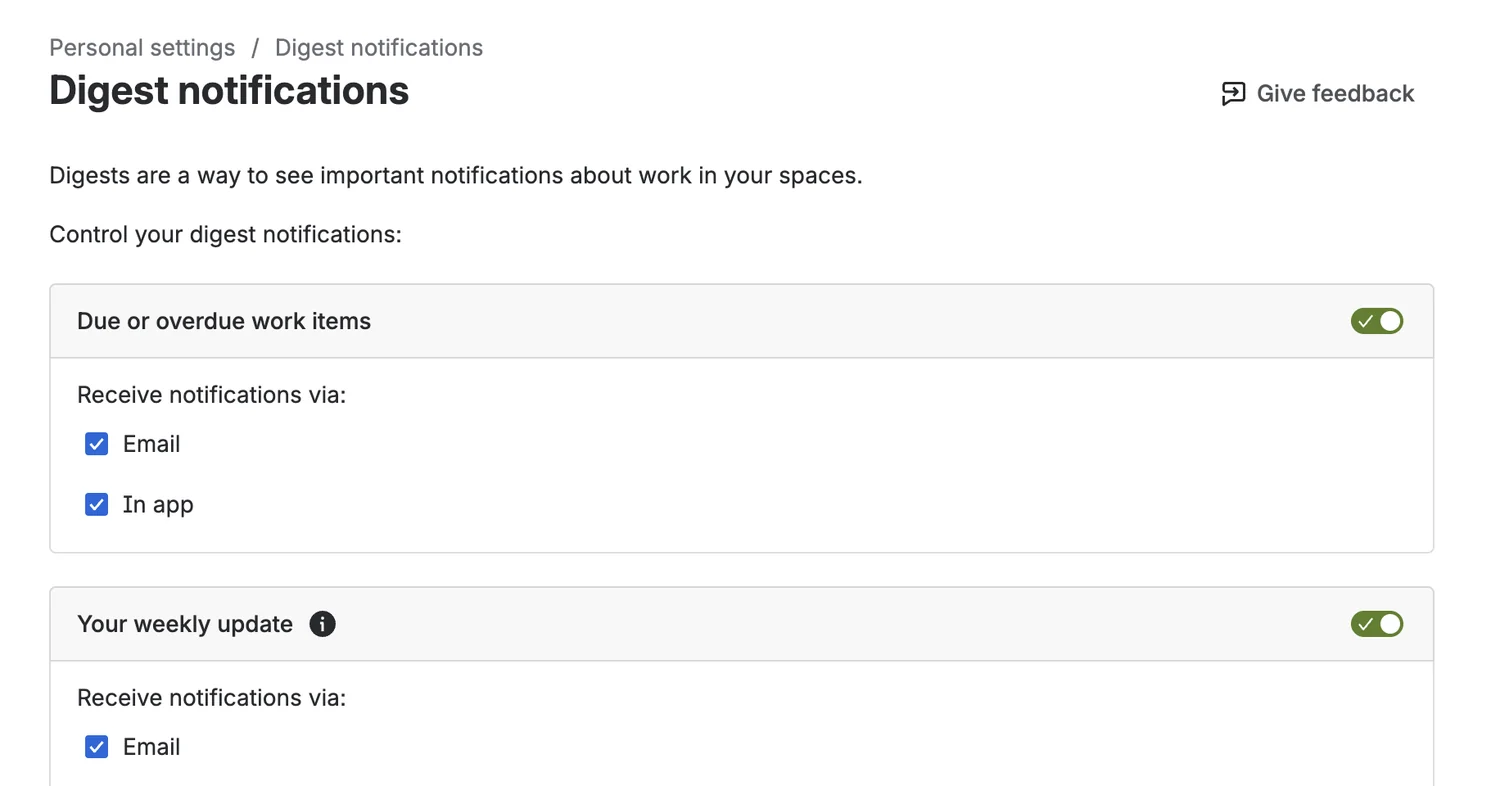
The simplest Jira due date reminder is already in Jira. Select your avatar, then Personal settingsDigests, and turn on Due or overdue work items with Email, In app or both.
 Enlarge screenshot
- Due or overdue work items — the toggle is per person.
- Where it arrives: Email, In app or both.
The page has no time setting. Atlassian’s public request JRACLOUD-91990 describes the current behavior as a daily notification at about 8–9 am local time for the assignee’s due and overdue work. Each person controls their own setting, so a manager cannot turn it on for the team.
The usual Jira email notifications (Emails and notifications in the same settings) are about activity: you are the assignee, the reporter, or you changed a work item. They do not count down to a date. For Jira custom notifications such as “two days before the due date, with this subject”, use automation.
Check: the assignee has Due or overdue work items on for the channel they actually read.
Email two days before the due date
The example uses a sample service space: on 2 October 2026 the work item SECOPS-163 had a due date of 4 October 2026.
-
Step 1: Create a scheduled flow
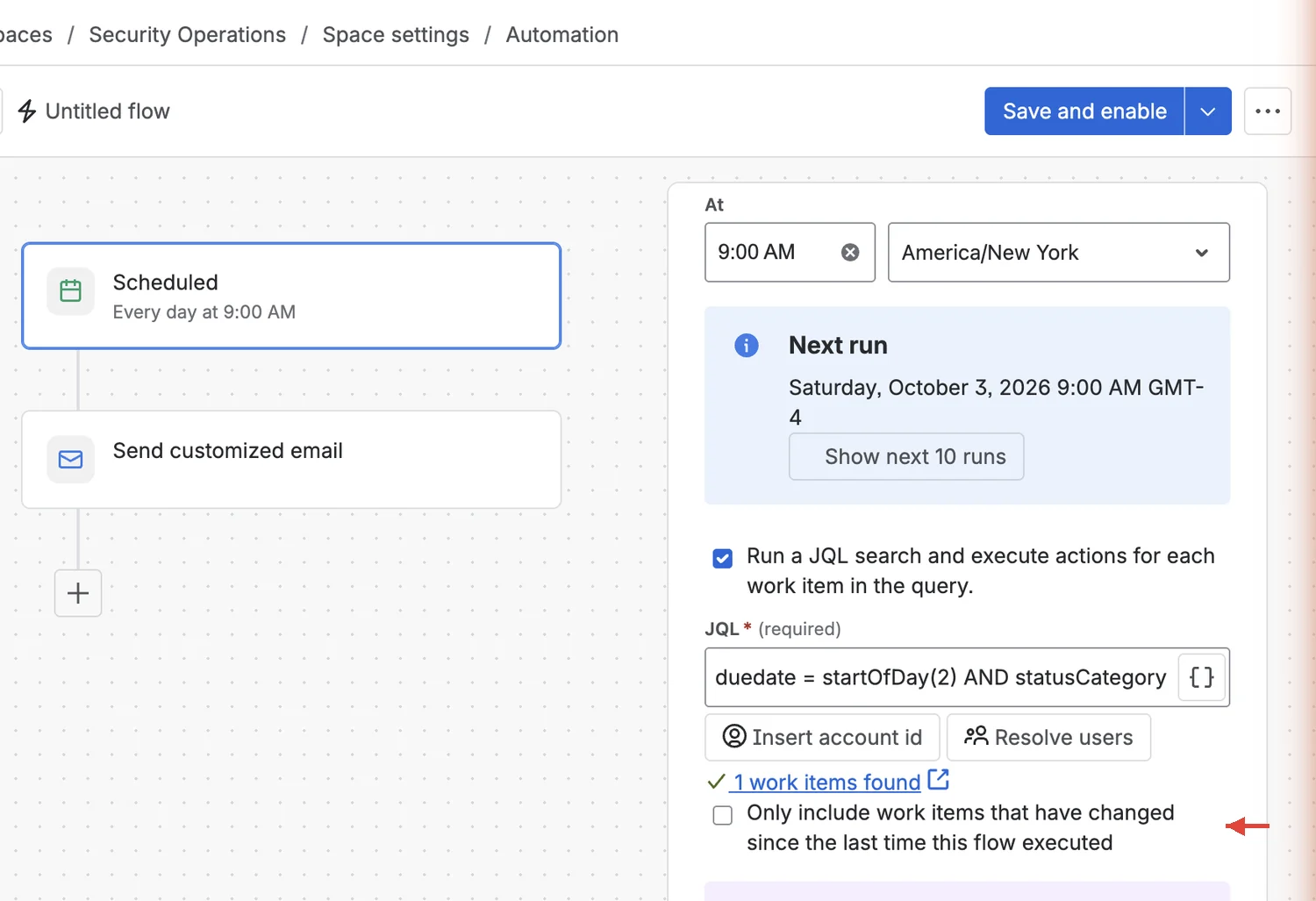
Go to Space settingsAutomationCreate flowCreate from scratch and add the Scheduled trigger. Set Run flow every to 1 Days at 9:00 AM.
Check: the trigger card says “Every day at 9:00 AM” and Next run shows the right zone.
-
Step 2: Find the work items due in two days
Tick Run a JQL search and execute actions for each work item in the query, enter the query and select Validate query:
JQL duedate = startOfDay(2) AND statusCategory != DoneIt means “due two calendar days from today, and not finished”. Then untick Only include work items that have changed since the last time this flow executed. Jira ticks it when you add the query, and with it on, a work item that nobody edited is skipped — a deadline getting closer is not an edit.
 Enlarge screenshot
- The trigger: every day at 9:00 AM.
- The time zone, set explicitly.
- The due-date JQL; Validate query found 1 work item.
- Only include work items that have changed… — unticked.
Check: the validation finds the work items you expect, and the changed-items box is empty.
-
Step 3: Send the email to the assignee
Select + under the trigger, choose Action and search for Send customized email. In Settings, fill:
- Email name — “Due in 2 days” (recipients don’t see it).
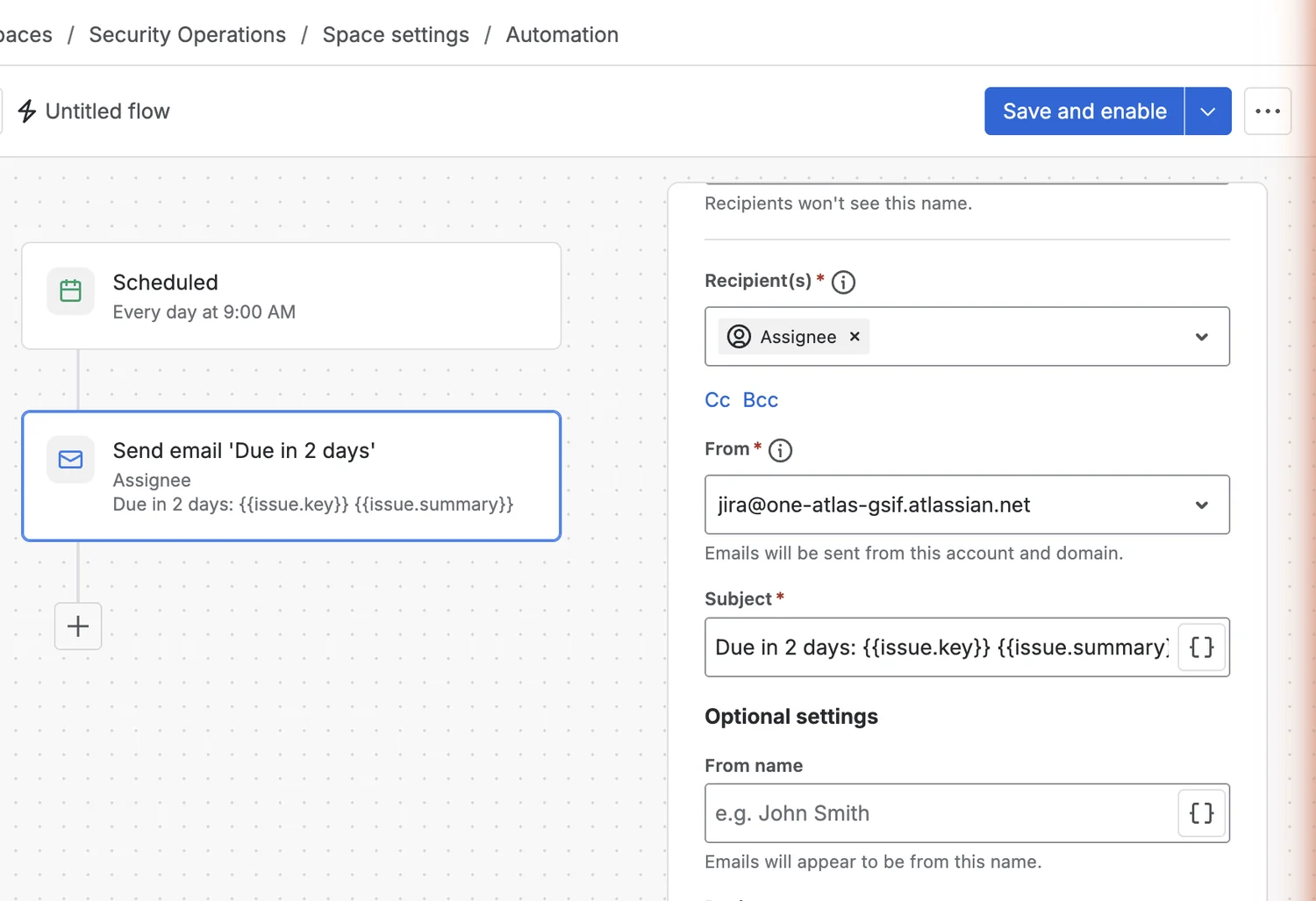
- Recipient(s) — type “Assignee” and pick the user field, not “Add email: Assignee”.
- Subject —
Due in 2 days: {{issue.key}} {{issue.summary}}.
 Enlarge screenshot
- The email step on the canvas.
- Recipient(s) — the Assignee user field.
- Subject with the work item key and summary.
On the Content tab, set Content format to Plain text (the other options are Rich text and HTML). In the tested Rich text editor, Jira asked for smart values to be wrapped in inline code; plain text avoids that step. A short deadline reminder email is enough:
Email body · plain text {{issue.key}} {{issue.summary}} is due in 2 days. Open it: {{issue.url}}Check: the canvas card shows “Send email ‘Due in 2 days’”, the Assignee and your subject.
-
Step 4: Name it, check usage, enable
Give the flow a clear name, validate the query once more and select Save and enable. Automation runs count toward your site’s usage limit, which depends on your plan: check the Usage tab on the Automation page before you add daily flows.
Check: the flow is listed as enabled, and after the next run its audit log shows the email action.
Email when work is overdue
Duplicate the flow, change the email name and subject to “Overdue”, and use this query (on the test space it found 2 work items):
duedate < startOfDay() AND statusCategory != DoneTogether the two flows are a deadline reminder email before and after the date. Each reminder goes to whoever is the assignee at the moment of the run.
One weekly list for a team lead
Team reminders don’t always need one email per ticket. For a lead who reviews deadlines once a week, save a filter and subscribe to it:
project = SECOPS AND duedate >= startOfDay() AND duedate <= endOfWeek() AND statusCategory != Done ORDER BY duedate ASCendOfWeek() ends on Saturday by default. If your team’s week ends on Sunday, use endOfWeek("+1d"). Atlassian: JQL functions
Open Filter detailsAdd subscription and choose Days per Week, for example Monday. Subscriptions run on your profile’s time zone and include the first 200 results. They go to you, or to a group you belong to if you have the Manage Group Filter Subscriptions global permission. It is one list, not a reminder per work item. The monthly client report guide shows the subscription dialog.
Check: the filter lists this week’s open deadlines, and the subscription day and time are right.
What it costs to run
Who needs to know, and when?
- Me
Digest
Due or overdue, about 8–9 am.
Each person turns it on
- Before
Scheduled flow
Due in 2 days → assignee email.
Admin builds it once
- After
Second flow
Overdue → email every day.
Watch the volume
- Team
Subscription
One list of this week’s deadlines.
Lead reviews it
Flows remove the manual sending, not the ownership. Someone keeps the queries, the time zone, the recipients and the usage in order, and reads the audit log when an email doesn’t arrive. If 20 work items are due in two days, the first flow sends 20 emails that morning; overdue ones come back the next day.
Downloads for this guide
Free, no sign-up
- Flow checklist
Name, purpose, JQL, schedule, time zone, recipient, subject, changed-items setting, test count, owner, review date.
 CSV · 1 KB
 - Filled example
The two flows from this guide.
CSV · 1 KB
Common questions
Is the built-in digest enough for a Jira due date notification?
For your own due and overdue work, yes. It has no time setting and no custom text, and each person turns it on for themselves; for “two days before, at 9:00, with this subject” use a flow.
Are Jira notifications sent automatically before a due date?
Only the digest, for due or overdue work. Regular Jira notifications follow activity on the work item, not the calendar.
Can automatic email reminders go to someone other than the assignee?
Yes. Recipient(s) accepts user fields, groups, smart values and email addresses, for example the reporter or a team group.
Why did my scheduled reminders skip a work item?
Check two things first: whether Only include work items that have changed since the last time this flow executed is ticked, and the flow’s time zone. If both are right, the flow’s audit log shows what happened.
Can I set a ticket reminder for one work item only?
Jira has no “remind me” action on a work item with its own time. A flow can target one work item, but it is still a centrally configured flow. For a follow-up separate from the due date, see how to set a reminder in Jira without changing the due date.
Follow-up Email Reminders for Jira sets one-time or recurring reminders on individual work items at a chosen date and time, without changing the due date, for you, the current assignee or named colleagues. It is free for teams of up to 10 users.