
Jira Service Management Cloud · Client reporting
How to Build a Monthly Client Report in Jira Service Management (+ Template)
Save one filter per client for last month, subscribe to it for the 1st day of each month, export the requests as CSV, and fill a short client report template. Jira gives you the data; the report for each client is put together by hand.
 Updated
 9 min read
 Tested in Jira Service Management Cloud on

Customer reporting in Jira Service Management usually means one thing: once a month, each client gets a short report on their requests. This guide shows the client reporting process with native features only — a saved filter, a filter subscription, CSV export and Jira Service Management reports — and a template to put the numbers in. All steps are done by hand in the interface.
Short answer
- Decide the sections of the client report: volume, SLA, notes, actions.
- Save a filter per client for last month, with
startOfMonth(-1). - Subscribe to it on the 1st day of every month.
- Export the requests as CSV and take the SLA number from a JSM report.
- Fill the template, check the numbers and send it. Repeat for each client.
On this page5 sections
What goes into the report
A monthly client report template does not need many sections. Jira Service Management reporting covers the numbers, and each number should have a source in Jira; the comments come from the person who knows the account.
| Section | What to include | Native source |
|---|---|---|
| Report details | Customer, month, date prepared | Template |
| Volume | Requests created and resolved in the month | JQL search or saved filter |
| Requests | Key, summary, status, dates — the list behind the numbers | Search → Export CSV |
| SLA SLA guide → | SLA name, target, result with counts | JSM custom report |
| Notes and actions | Incidents, risks, decisions, next steps | Service manager |
This is a client report template, not a copy of Jira. For custom client reporting, keep only the fields and explanations the client actually reads.
Collect the data for one client
The example is Northstar Services, one of three customer organizations in a Jira Service Management sample space.
-
Step 1: Save a filter for last month
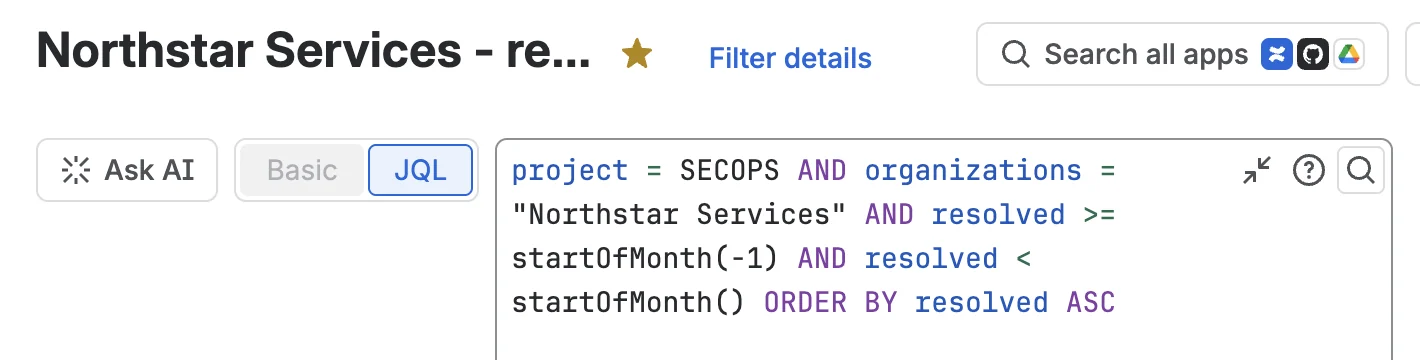
Go to FiltersSearch work items, switch to JQL and enter a query for one client and the previous calendar month:
JQL project = SECOPS AND organizations = "Northstar Services" AND resolved >= startOfMonth(-1) AND resolved < startOfMonth() ORDER BY resolved ASCSelect Save filter and give it a clear name, for example “Northstar Services - resolved last month”. Because the dates are relative, the same filter shows the right month every time you open it.
 Enlarge screenshot
- The saved filter’s name — one filter per client.
- The client and the rolling month: from the start of last month to the start of this one.
- Filter details — where you add the subscription in the next step.
Check: the filter shows the client’s requests for the previous calendar month, and only that client.
-
Step 2: Subscribe to the filter for the 1st of each month
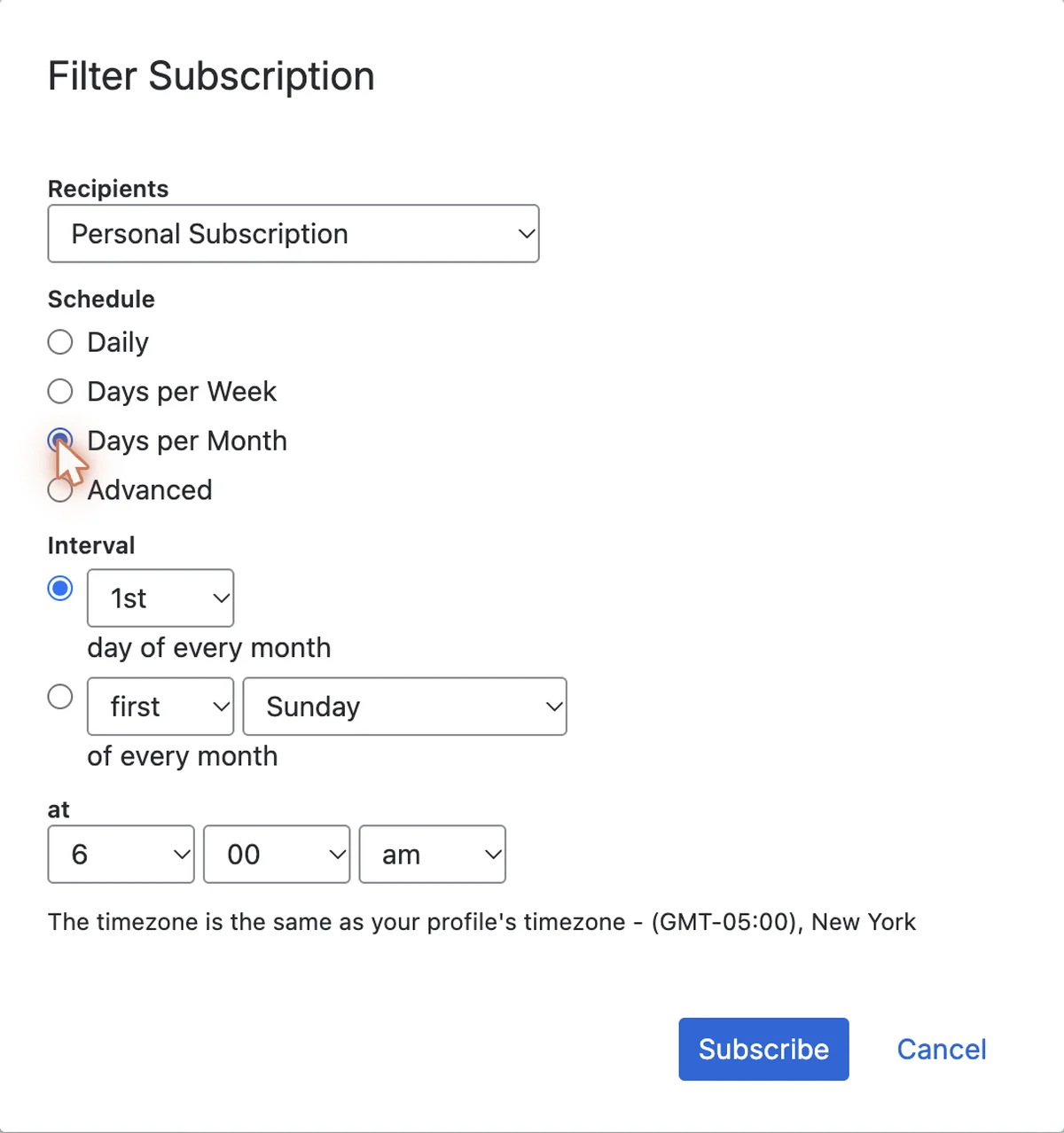
Open Filter details, then Add subscription. In Filter Subscription, choose Days per Month, the 1st day of every month and a time. Jira uses the time zone of your profile.
 Enlarge screenshot
- Days per Month — the other options are Daily, Days per Week and Advanced.
- The 1st day of every month.
- The time the email is sent.
- The schedule follows your profile’s time zone.
Check: the subscription appears under Subscriptions in Filter details.
-
Step 3: Export the requests
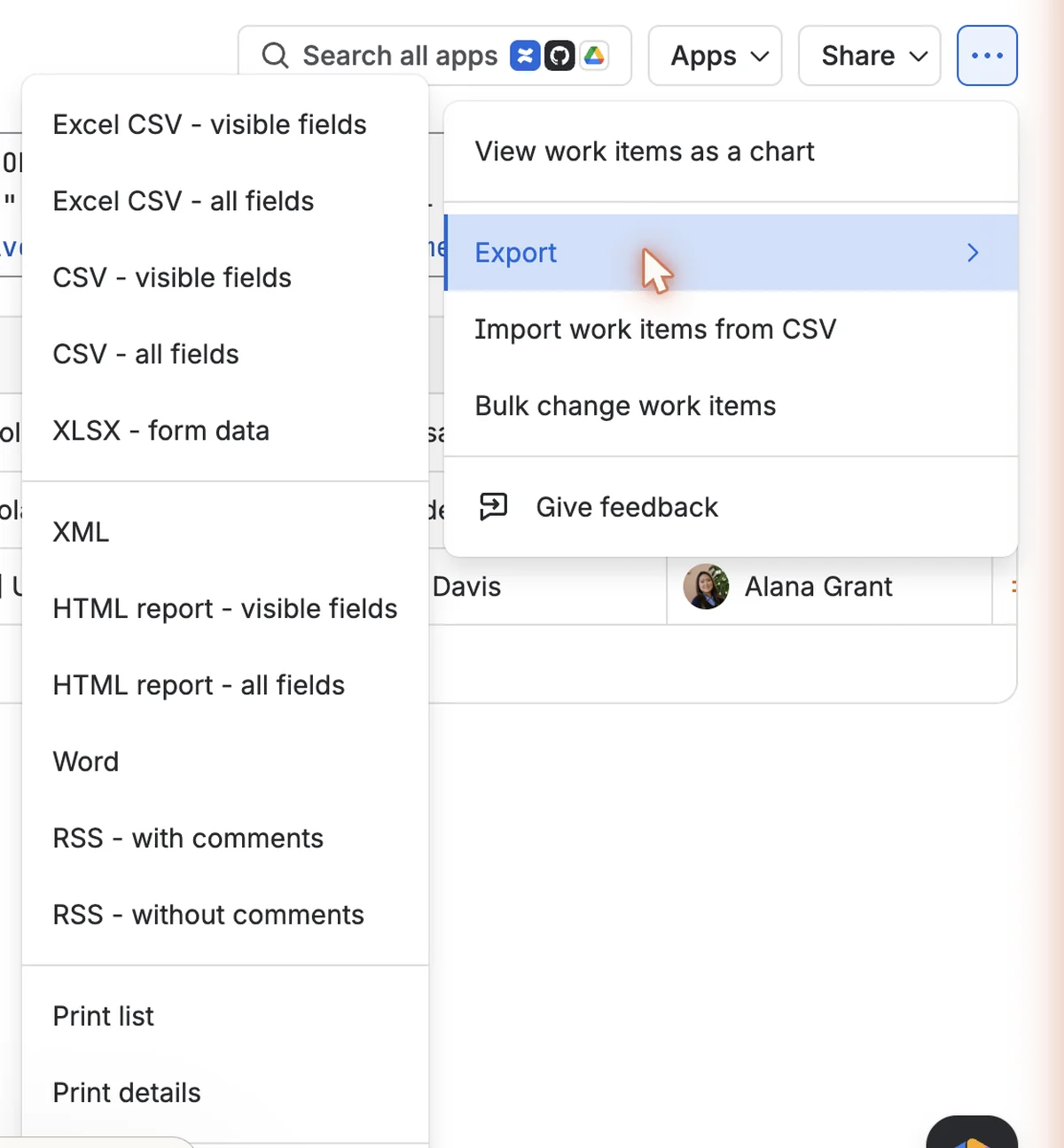
Open the saved filter, check the list, then select ⋯Export. CSV - visible fields exports only the columns you see, which keeps the file short; CSV - all fields exports every field, including comments. The Excel CSV options produce the same data for Excel.
 Enlarge screenshot
- Export in the search ⋯ menu.
- The four CSV variants: visible fields or all fields, for Excel or plain CSV.
If you need to export reports from Jira at the summary level, open the relevant JSM report, set its view to the reporting month, then select Export CSV. The report export contains only the current view, so check the period before downloading it; the SLA report guide shows the full SLA workflow. Keep this report CSV with the request CSV.
Check: the request CSV row count matches the search, and the JSM report CSV comes from the correct monthly view.
-
Step 4: Fill the template and check it
Copy the numbers into the template in this order: report details, volume, SLA, notes and actions. Keep the two exports with the finished file, so you can answer “where does this number come from?” next month.
Downloads for this guide
Free, no sign-up
- Monthly client report template
Report details, volume, SLA, notes, actions and a verification line, with a source column for every number.
 CSV · 1 KB
 - Filled example
Northstar Services, January 2024, sample data from this guide.
CSV · 1 KB
Save a copy per client and use it as your client monthly report template; replace the values each month instead of editing last month’s file.
- The right organization and the right calendar month.
- Created and resolved counted separately.
- Every percentage has its SLA name, period and counts.
- Comments are marked as yours, not as Jira data.
A client report example
With the sample data, the summary for Northstar Services for January 2024 looks like this:
Northstar Services · January 2024
| Item | Value | Source |
|---|---|---|
| Requests created | 13 | JQL search, created in January |
| Requests resolved | 13 | Saved filter, resolved in January |
| Time to resolution, SLA met | 76.9 % (10 of 13) | JSM custom report, checked with JQL |
| Notes and actions | Written by the service manager | Account knowledge |
A one-paragraph summary is enough: “In January 2024, 13 requests were created and 13 were resolved. 10 of the 13 resolved requests met the Time to resolution SLA (76.9 %).” Then add only what the client needs to know: incidents, recurring themes, decisions and next steps.
How much work it is each month
Customer organization and last month
- Saved filter
Rolling month
Same JQL every month.
Review the list
- Subscription
1st of the month
An email with the list, up to 200.
A reminder, not a report
- Exports
Search CSV + report CSV
Requests and totals.
Check the counts
- Template
Write and send
One file per client.
Repeat × clients
For each client, every month: review the filter, export the requests, set the month in the JSM report and export it, fill the template, write the notes, check the numbers and send the file. Ten clients mean ten filter reviews, ten request exports, ten report-view checks and exports, ten templates to fill and ten files to send every month. A client reporting dashboard — for example a custom report with one series per organization, which works as a multi client reporting dashboard for the team — shortens the review, but it does not produce a file per client.
Native Jira reporting tools for a monthly client report
| Need | Native feature | What is left by hand |
|---|---|---|
| One client’s month | Saved filter with startOfMonth(-1) | Review the list |
| A monthly email | Filter subscription | It is the list, not the report |
| Request detail | Search → Export CSV | Choose and check the columns |
| Totals and SLA | JSM reports → Export CSV | Set the month, check the numbers |
| The client’s file | Template | Fill, check and send |
Common questions
Are Jira scheduled reports the same as filter subscriptions?
No. A subscription emails the requests a saved filter returns, on a schedule. It does not export a JSM report, make a PDF or assemble a client document.
Does this work for help desk reporting and service desk reporting?
Yes. The same filter, export and template steps produce helpdesk reports and service desk reports for any customer organization, as long as the organization is set on the requests.
Is a filter email automated client reporting?
Only partly. It automates delivery of the saved-filter list; someone still exports the source data, checks the numbers, writes the report and sends it. If by automated reporting for clients you mean a finished client file, the filter subscription does not provide that.
Do I need client reporting software or other client reporting tools?
Not for a few clients: native filters, subscriptions, exports and a template are enough. If repeated monthly assembly becomes the bottleneck, compare a client reporting tool by the step it removes. A client reporting solution may prepare the client file itself, while client reporting automation tools may automate only parts such as scheduling or delivery, so check the actual scope.
What should I take from client reports examples?
The structure: customer, period, where each number comes from, named metrics, notes and next steps. Leave out charts you cannot trace back to Jira data.
If you prepare these reports every month, Client Reporting Software for Jira Service Management prepares a separate PDF and CSV for each customer organization on a saved schedule, ready for your review. It is free for teams of up to 10 users.