Customer follow-ups
A customer needs time to test a fix. Remind yourself or a fellow JSM agent to check back with the details still on the ticket.
 Follow-up Email Remindersfor Jira & JSM
Create a personal or team reminder from a Jira work item. Choose yourself, named colleagues, or the current assignee, then manage every follow-up in My reminders.
Free for up to 10 Jira users. View pricing.
Set the reminder where the work is, then keep track of every follow-up in one list.
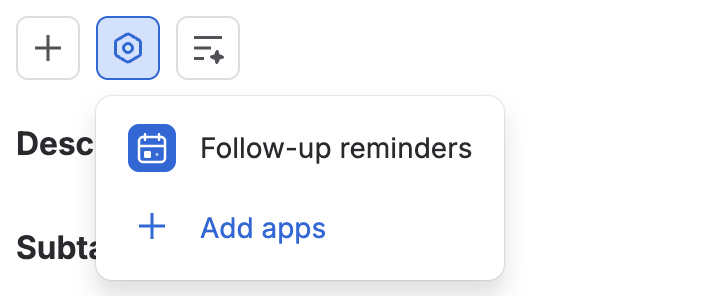
1. Open
Follow-up reminders is one entry in the issue’s Apps menu. The rest of the issue stays as it is.
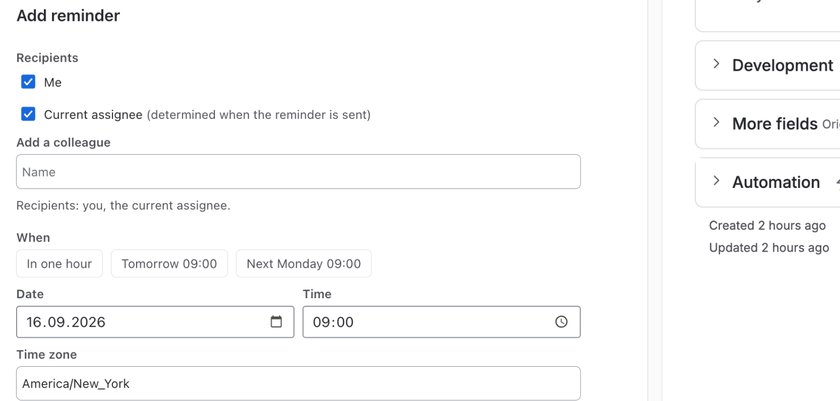
2. Set
Pick yourself, named colleagues or Current assignee, then a quick date or an exact time. Repeat and a note are optional.
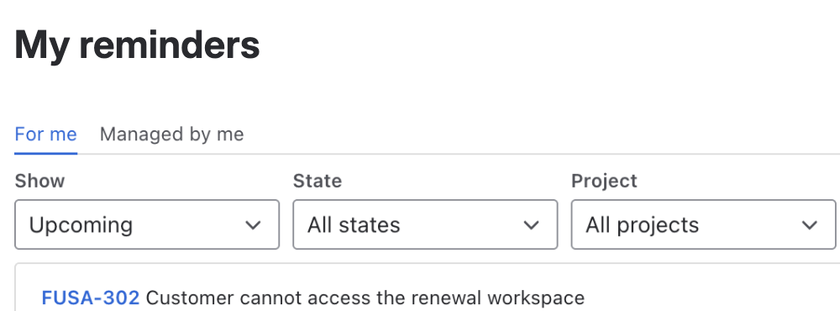
3. Track
Filter by project or state. Snooze or stop your own notification without changing anyone else’s schedule.
Real Jira screens with fictional issue data.
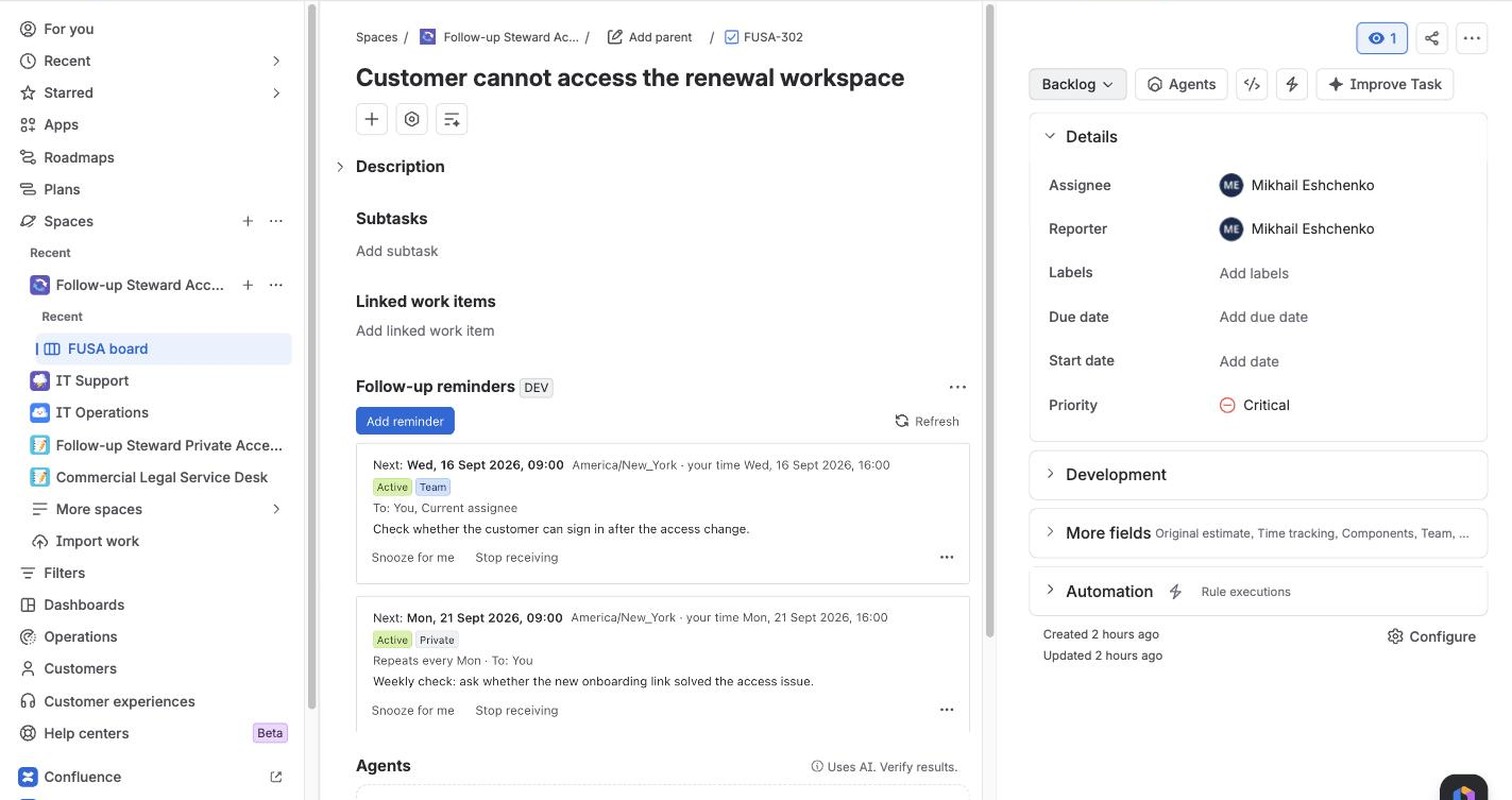
See the next send time, recipients, note and controls beside the work instead of in a separate tool.
Jira Cloud issue FUSA-302 with a team reminder and a weekly private reminder · Fictional example, not customer data.
“Check in on Tuesday” and “finish by Friday” are different commitments. Give each its own date, right on the issue.
Friday, 18 September · 16:00
The deadline stays in place.Tuesday, 15 September · 09:00
Check in with Sam about the logs.Two dates on one issue.
A customer needs time to test a fix. Remind yourself or a fellow JSM agent to check back with the details still on the ticket.
The next step belongs to whoever takes the issue. Choose Current assignee and the reminder follows the assignment.
Keep an ongoing issue moving with a weekly or monthly reminder. Each recipient can snooze or stop their own notifications.
Useful for individual contributors, teams, and the admins who support them.
Private reminders stay personal. Team reminders respect issue access, checked again before sending. Project controls and ownership transfer keep shared follow-ups manageable as teams change.
Read about security and permissionsPersonal and team reminders, repeating schedules, individual snooze, and project controls are all included.
Pricing follows the Jira user tier of your site, not how many people set or receive reminders.
Free for up to 10 licensed users.
$0.01USD per user / month
For every licensed user on sites above 10 users. Taxes are additional where applicable. Atlassian Marketplace handles trials, subscriptions and billing.
Annual subscriptions use the upper end of the applicable user tier, priced at 10 monthly payments.
Follow-up Email Reminders is a reminder tool for Jira issues. When the date and time you choose arrives, Jira will send a reminder email with a link back to the issue. The issue’s Due Date stays unchanged.
Email reminders keep future actions attached to the issue where work already lives. Set one when you need to come back later instead of relying on memory. Works in Jira Cloud and JSM Cloud, keeps a separate schedule, never creating issues, changing fields or touching Due Date.
Nothing is sent when you save or edit. When due, Jira emails your note with one link back to that issue. A deadline reminder email here follows the date you choose, not Due Date: unlike a Jira due date reminder, that field stays unchanged.
Due Date should show the real deadline. When people overwrite it with their next check-in date, planning boards, filters and SLA conversations stop telling the truth. A separate follow-up date keeps both honest: the deadline stays put while you still come back on time. Teams reviewing overdue work then see real risk instead of moved targets.
Every recipient needs Jira or JSM license and access to that issue, checked again before each send. A reminder for Jira cannot reach portal customers. Each person can use Snooze for me and Stop receiving on their own copy, while everyone else keeps the shared schedule.
This follow up app works as a follow up tool for issue-based work, not as replacement for Jira email notifications or Jira notifications in general. As reminder software, sending follows only the schedule you set: no Slack, Teams, SMS or calendar delivery, and email reminder services here cover licensed internal users only.
Is anything sent when I create or edit?
No. Saving and editing are silent; email goes out only when scheduled time arrives.
Can several people get one check-in?
Yes: named colleagues plus Current assignee, as long as they are licensed internal users with access.
Can each person control only their own copy?
Yes. Snooze for me and Stop receiving affect that person only.
Can I use follow up reminders instead of changing Due Date?
Yes. Each one has its own date and time.
What does this app not do?
No portal customer messages, no new issues, no field changes, no Slack, Teams, SMS, calendars. Jira custom notifications are out of scope.
A few things to know about this reminder app for Jira before you set your first follow-up.
Get help from supportYes. Select yourself, named colleagues, or Current assignee. Recipients need active, licensed Jira or JSM accounts and access to the issue. The app resolves Current assignee again when the reminder is due.
Yes. Scheduled reminders run independently of your browser. Jira handles the email. The app shows whether Jira accepted a notification and explains skipped or failed attempts; it does not claim an email was read or reached the inbox.
Yes. Snooze for me pauses your notifications until the time you choose. You get one personal reminder then rejoin the original schedule. Teammates keep their own reminders. You can also stop receiving a reminder without canceling it for others.
Daily, weekly on selected days, or monthly on a date or the last day of the month. Each reminder keeps its chosen time zone. Preview the next dates before saving, and add an end date if needed.
The Due Date stays unchanged. Reminders stop when the app observes the issue in Jira’s Done status category. Reopening the issue does not restart them; an authorized owner or project administrator can resume a team reminder with a new future date.
A reminder only to yourself is private. Team reminders are visible to their owner, recipients, and authorized project administrators who have issue access. The owner manages the shared schedule; recipients control their own snooze and opt-out. Project administrators can manage team reminders within their permissions.
Keep a useful next step with the issue. Come back when it is time.